


Phone and video visits in Scribeberry: call patients from the scribe, with your own number


In this article 15 sections
Quick answer
Phone and video visits are available now for Scribeberry Pro users. Call from the web or mobile app, show your clinic’s caller ID, and generate the note from the conversation. Patients join video visits through a texted browser link—no app or account.
Call the patient. Have the conversation. Generate the note. Phone and video visits are available now for Scribeberry Pro users. Here’s how a call starts:
Call a patient from a new scribe
On the web, hover over New scribe. Phone call and Video visit sit right below Virtual visit. Choose Phone call, type the patient’s number and press Call.
The status line follows the call: Connecting…, Calling…, Ringing…, then On call with the patient’s number. The scribe waits until the patient answers, then the transcript fills in as you talk. Mute and Hang up sit beside the record button.
Prefer the keyboard? Press ⌘⇧9 for a phone call or ⌘⇧0 for a video visit (Ctrl+Alt+9 and Ctrl+Alt+0 on Windows).
The 19 short demos in this guide use recreated interfaces, fictional patients and numbers, and condensed timing.
Dial it like a desk phone
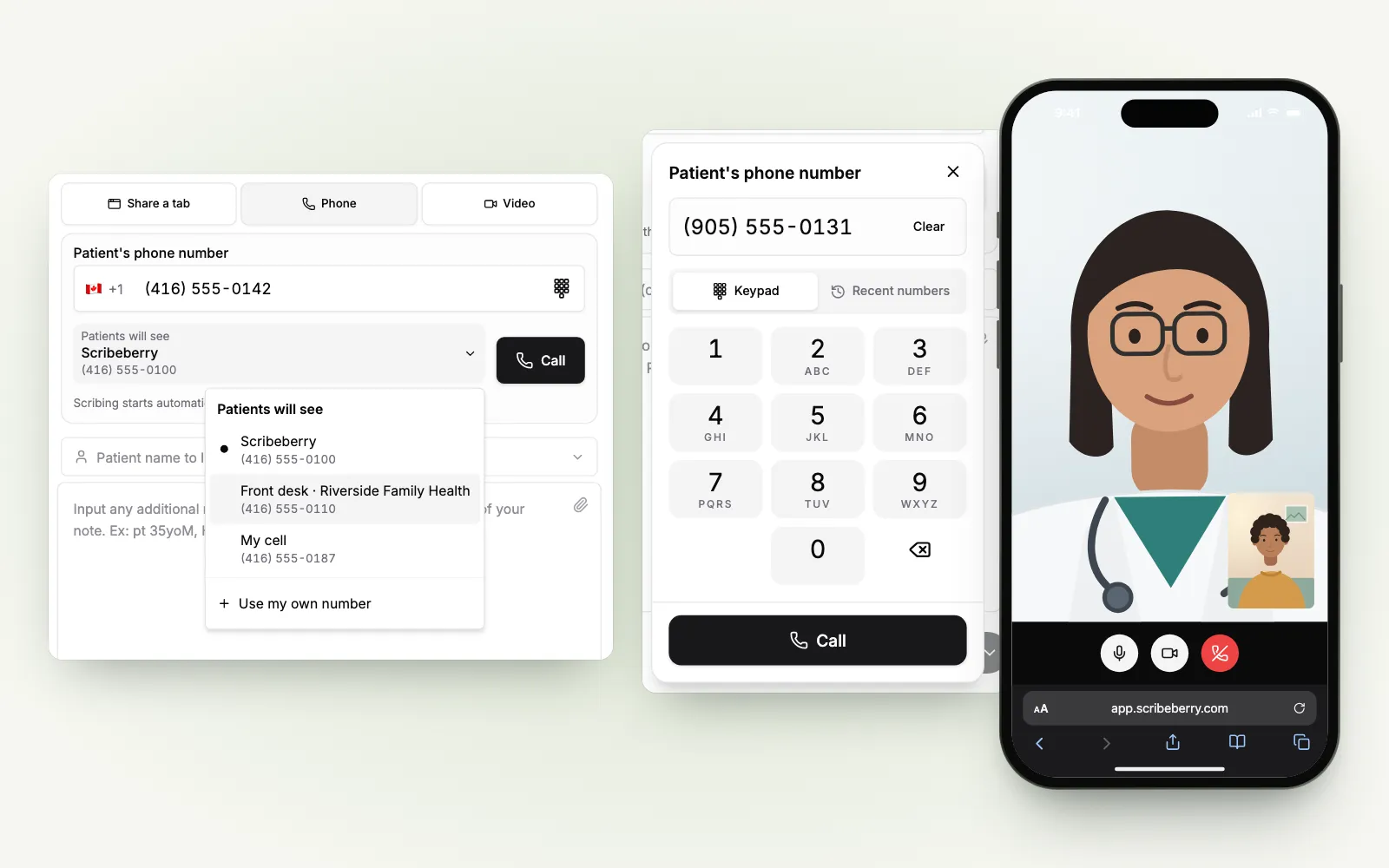
Prefer to punch the number in? The keypad icon in the phone field opens a full dialpad with big keys and a large display, just like the phone on your desk. Tap the number in, type it or paste it, then press Call.
The mobile app has a full-size keypad too, with big round keys like your phone’s own dialer. Choose New phone call from the ⋯ menu, tap the number in, check Patients will see, and press the green Call button:
For callbacks, Recent numbers keeps the last eight numbers you called or texted a link to. Pick one and press Call.
Calls go to Canadian and US numbers.
Video visits: one text, no app
Text the patient a link, and the visit opens full screen on your phone, like a FaceTime call. When your patient joins, their video fills the screen, your self-view sits in the corner and ● Scribing shows the scribe is listening. Tap Transcript to see what it has heard so far, or End to finish and return to the scribe.
On the web, choose Video visit (or switch the visit to Video), enter the patient’s mobile number and press Text link. The status reads Link sent. Waiting for the patient to join…, with Copy link and Resend in case the text doesn’t arrive.
When the patient joins, their video appears in the scribe and the transcript starts.
What your patient sees
The text says: “Your clinician is ready for your video visit. Join here:”, followed by the link. One tap opens the visit in the phone’s browser. The patient chooses Join visit, allows the camera and microphone, and they’re in. There’s nothing to download and no account to create.
If the camera isn’t available, the patient joins with audio only. If the phone blocks sound at first, the page shows Tap to hear your clinician. Each link works for two hours at most, stops working when the visit ends, and is replaced if you resend it.
Hang up, then generate the note
When the conversation ends, press the red Hang up button. It ends the call and stops the scribe. Then press Generate: the note is written from the call’s transcript and any context you added, and it appears in Results for your review.
On your phone it’s the same two taps: End call, then Generate. The note is written from the call’s transcript and appears in Chat, ready to review.
From there, a phone note works like any other. Edit it, copy it into your EMR, or, in clinics connected to Accuro, send it to the patient’s chart from the note.
For clinics training their teams, South Calgary Primary Care Network has also published a five-part video series on using Scribeberry:
South Calgary Primary Care NetworkLinkedIn · January 14, 2026 We’ve published a five-part video series highlighting Scribeberry, an AI transcription tool that supports efficient, high-quality documentation in primary care. While these videos are geared toward clinicians, we’re sharing the full playlist so our community can see how innovations are helping improve the patient experience. Watch the full series here: https://lnkd.in/gn2GgXr6 #HealthInnovation #DigitalTransformation #SCPCN
View on LinkedIn
Take the call from iPhone, Android or iPad
Here’s the whole thing on iPhone: tap the number in, talk while the scribe listens, and see your next patient full screen.
On your phone, start where you’re already working. Call patient sits beside Start visit on your appointments and brings up the patient’s number and your outgoing caller ID. Check both, then tap Call. The call opens in the scribe: the transcript fills in as you talk, with Mute, Audio and End call underneath.
Android works the same way, with an Android-style keypad. Here’s New phone call from the ⋮ menu, in dark mode:
For a video visit, tap Call patient, switch to Video and tap Text link. The visit opens full screen right away, with Copy link and Resend while you wait, and the scribe starts when your patient joins:
Want the scribe mid-visit? Tap Scribe to see the transcript with your patient’s video in a small window, then Full-screen video to go back:
On iPad, Scribeberry in Safari gives you the larger workspace: recent numbers, caller ID, transcript and note context together. Choose a recent number for a callback without typing it again.
Our guide to the Scribeberry mobile app covers the rest of the phone workflow, from the schedule to the patient chart.
Call from your own number
Calls show the Scribeberry number unless you or your clinic choose another. To show your own, open Patients will see and choose Use my own number. Give it a name, enter the number, and choose Text me the code or Call me with the code (landlines). Enter the code, and the number is ready.
Scribeberry remembers the number you pick as your default. You can still choose a different one on any call.
One clinic line for every clinician
A familiar caller ID helps patients recognize who’s calling. We recommend adding your clinic’s front-desk or callback number before your first session: a clinic admin can verify it once in Group Administration → Settings → Clinic phone numbers, then choose Make default. Every licensed clinician in the clinic can call from it.
On each call, Patients will see lists the numbers you can use: the Scribeberry number, your clinic’s numbers and your own. Your own pick comes first, then the clinic default, then the Scribeberry number.
Keep the patient in view while you work
The video sits in the scribe by default. Hover over it to Float it in a corner above your work, or switch to Full view for a closer look at a rash, a range of motion or a blood pressure log held up to the camera. Esc leaves Full view. In Chrome and Edge, Pop out opens the video in its own always-on-top window.
You can move around Scribeberry during a call without dropping it. Closing the tab ends the call.
Prefer the video platform you already use? Share a tab works exactly as before and stays the default for virtual visits.
Before your first call
- Open Scribeberry on the web or in the mobile app, and allow microphone access (and the camera, for video visits).
- Add your clinic’s numbers and choose the right caller ID under Patients will see.
- Wear a headset if you can. Your patient hears you clearly, without echo.
- Ask for consent at the start. Scribeberry doesn’t play an automated announcement, so tell the patient you’re using an AI scribe, as you would in the exam room. Our guide to patient consent for AI scribes covers what the CMPA recommends.
- Have the patient’s Canadian or US number handy, and a mobile number for video visits.
What to look for in virtual care software
Virtual care tools often handle the call well and leave the documentation for later. These are the questions worth asking, and how Scribeberry answers them:
| What to look for | In Scribeberry |
|---|---|
| The call and the note in one place | Calls and video visits start from the scribe. The transcript builds as you talk, and Generate writes the note. |
| A number patients recognize | Your own verified number or your clinic’s line, chosen per call. |
| Nothing for patients to install | A texted link opens in the phone’s browser: no app, no account. |
| A workflow that travels with you | Call from the iPhone or Android app, or use the web workspace on a computer or iPad. |
| Canadian patient data | Stored and processed in Canada, with end-to-end encryption. |
| An independent evaluation | Pre-qualified by Canada Health Infoway for its national AI Scribe Program in May 2025. |
| A note that reaches the chart | Copy it into any EMR; Accuro-connected clinics can send it to the chart. |
Canadian care, Canadian patient data
Scribeberry has been built in Canada since 2023. In May 2025, Canada Health Infoway pre-qualified Scribeberry for its national AI Scribe Program, after an evaluation that covered privacy, cybersecurity, EMR integration and clinical usability. Canadian customer patient data is stored and processed in Canada, with end-to-end encryption. US infrastructure serves US and international customers.
Infoway’s update from Nova Scotia shows how the national program is reaching clinics:
We’re pleased to see that AI scribes are already making a difference for clinicians and patients in Nova Scotia. Since our AI Scribe Program launched in the province, more than 440 medical professionals have begun using AI documentation tools. https://t.co/Y1L3mMNU40
— Infoway (@Infoway) January 27, 2026
Calls are designed to share as little as possible. Scribeberry’s record of each call holds no patient name or phone number; your last eight numbers are kept only for your Recent numbers list. The patient’s join page loads no analytics or advertising trackers. Our security page has the details.
Start your next call from the scribe
Pro users can start right away. Open Scribeberry, choose New scribe → Phone call on the web or Call patient from an appointment in the mobile app, and call your next patient. Choose your clinic’s caller ID, have the conversation, then hang up and generate the note.
Follow along
We share new features as they ship. Follow Scribeberry on LinkedIn, X, Instagram, Facebook, TikTok and YouTube.
Frequently asked questions
Can I call patients from Scribeberry?
Yes. Phone calls and video visits are available now for Scribeberry Pro users. On the web, choose Phone call from + New scribe, enter the patient’s number and press Call. In the mobile app, use Call patient from an appointment or New phone call from the menu. The scribe starts when the patient answers; hang up, then generate the note.
Can patients see my own phone number when I call?
Yes, once you verify it. Open Patients will see, choose Use my own number, and confirm the number with a code sent by text or by phone call. Clinic admins can also verify a shared clinic number for every licensed clinician. Unless you or your clinic choose another number, calls show the Scribeberry number.
Does my patient need an app for a video visit?
No. Scribeberry texts the patient a private link that opens in their phone’s browser. They choose Join visit and allow the camera and microphone. There’s no app to install and no account to create.
Which phone numbers can I call or text?
Canadian and US phone numbers.
Do I still need the patient’s consent to use the AI scribe on a call?
Yes. Scribeberry doesn’t play an automated announcement on calls, so ask for the patient’s consent at the start of the conversation, as you would in the exam room, and follow your clinic’s policies.
Can I make calls from the Scribeberry iPhone or Android app?
Yes. Tap Call patient on an appointment, or choose New phone call from the ⋯ menu. Confirm the patient’s number and the caller ID, then call. For a video visit, choose Video and text the patient a link. The conversation and scribe stay together in the app.
Sources

More on topic
-
Product
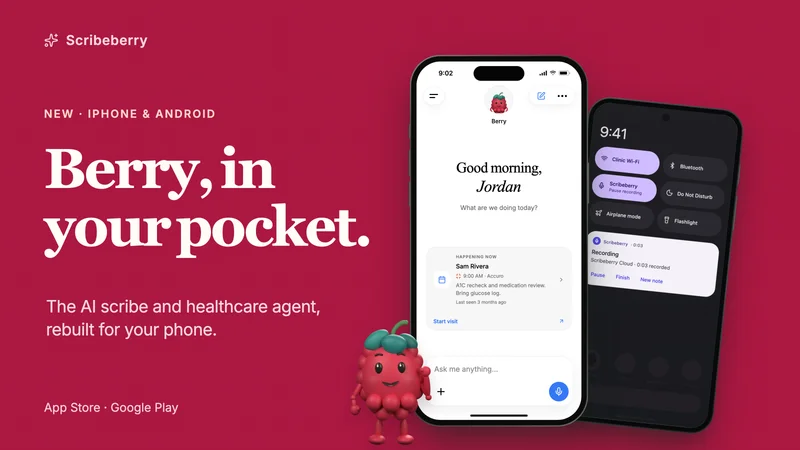
The new Scribeberry app: an AI scribe and healthcare agent for iPhone and Android
Use Scribeberry alongside your existing EMR, with Accuro appointments and charts for connected clinics. Ask Berry to prepare visits, fill forms and draft referrals.
-

Guides
Canadian Privacy Rules on Medical AI Scribes
Explore the privacy regulations for AI medical scribes in Canada, focusing on consent, data protection, and vendor compliance.
-

Guides
CMPA Guidelines on patient consent for AI Medical Scribes
Understand the CMPA guidelines on patient consent for AI medical scribes, ensuring compliance and maintaining patient trust.