


Your clinic schedule on your phone: appointments, calendars and pre-charting with Berry


In this article 11 sections
Quick answer
Scribeberry’s mobile app shows your clinic schedule on iPhone and Android in Agenda, Day and Month views, with visit-note previews and last-seen labels on each appointment. You can add appointments, connect Accuro or a calendar link, import a photographed day sheet, and ask Berry to pre-chart any clinic day into draft scribes.
The schedule is the spine of a clinic day. It decides who you see, in what order, and how much you need to know before each door opens.
Pre-visit planning, or chart prep, is the habit of gathering that information before the patient arrives. A 2021 systematic review describes its purpose plainly: to help the patient and physician save time and improve care by gathering and organizing information in a structured way.
The new Scribeberry app puts the schedule and the prep in your pocket. Here’s how, in 10 short videos. They’re recreated app demonstrations with fictional patients and condensed timing.
Today, at a glance
The Agenda is written to be read in a few seconds:
- Visits that have already ended fold under Earlier today, out of the way.
- The current appointment is outlined and marked Now.
- Each card shows a short preview: the appointment’s own notes or, if there aren’t any, what happened last time. A label such as “Last seen 3 weeks ago” sits underneath.
- Intake status appears when there is one: Intake sent, Intake in progress or Intake ready.
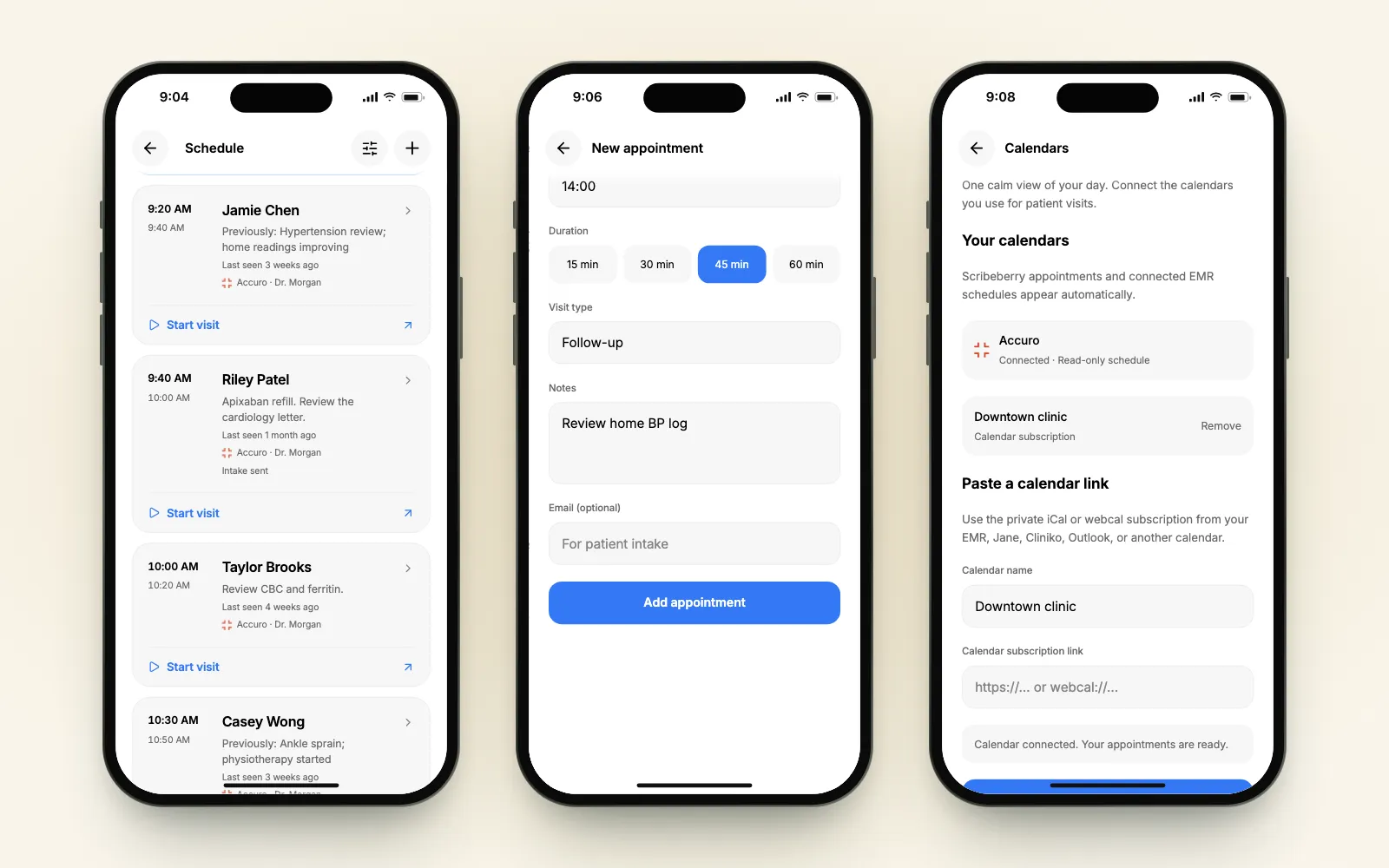
Agenda, Day and Month
Switch views from the top of the Schedule. Day lays visits out on a timeline; Month shows which days are busy. Source chips filter the list, so you can see only Accuro, only Scribeberry appointments, or everything together.
Start the visit from the schedule
Every appointment opens to its details: visit type, clinician, location, date of birth and contact details, then visit notes and the last visit. Start visit opens the scribe for that patient. You can start just as easily from Up next on Home.
Add an appointment
Not every visit lives in an EMR. Tap + for a new appointment: patient name, date, time, a 15-, 30-, 45- or 60-minute duration, visit type and notes. Email and phone are optional and used for patient intake.
Appointments you add in Scribeberry can be edited or cancelled later. Their notes and intakes stay available if you cancel.
Connect the calendars you already use
The Calendars screen gathers your sources. A connected Accuro schedule appears automatically as Connected · Read-only schedule.
For anything else, paste the private iCal or webcal link from your EMR, Jane, Cliniko, Outlook or another calendar. Preview calendar shows the next events first, exactly as that calendar shares them, so you can check it’s the right one before you connect it.
Calendar titles don’t establish who the patient is. Scribeberry confirms the patient when you start a visit.
A paper day sheet? Photograph it
Some clinics still print the day. In Calendars, choose Import a day sheet, then a photo of the sheet, or paste the schedule as text. Scribeberry reads the names and times and shows them for review. A row without a time isn’t selected, so you can add that visit yourself.
This demo is on Android; the iPhone app has the same screen.
Pre-charting by asking
“Prechart my next clinic day.”
Berry asks where the schedule is (your connected Accuro schedule or a pasted list) and which day you’re preparing for. Today and Tomorrow are one tap; Choose another date opens a calendar right in the conversation. Review the visits and what will be included, then create the draft scribes.
Each draft scribe opens with the patient and chart context you chose. On the web, they wait together in a pre-chart folder, too:
If your clinic uses the intake add-on with messaging configured, pre-charting can send intakes to patients who don’t have one yet. Berry shows the recipients and contact details for review first.
Ask what’s coming up
The calendar is for scanning; a question is faster when you just need the next stretch of clinic.
Protect time for charting
On Enterprise plans with Google Calendar and Gmail connected, Berry can block charting time and tell the front desk, with your approval before each action.
Start with tomorrow
Download the app, open the Schedule, and ask Berry to pre-chart tomorrow. If you use Accuro, the Accuro walkthrough shows the rest of the day; for everything else, start with the new Scribeberry app.
Frequently asked questions
What is pre-charting, or chart prep?
Pre-charting is preparing before a visit: reviewing who is booked, why they are coming and what is already in the chart. In Scribeberry, Berry turns a clinic day’s appointments into draft scribes, each with the chart information you choose, so the visit starts with that context in place.
Which calendars can I see in the Scribeberry app?
Scribeberry appointments and connected EMR schedules, such as Accuro, appear automatically. You can also paste a private iCal or webcal subscription link from your EMR, Jane, Cliniko, Outlook or another calendar, and preview its events before connecting it.
Can I import a paper day sheet?
Yes. Choose a photo of the day sheet, or paste the schedule as text. Scribeberry finds the names and times for you to review. Rows without a time aren’t selected, so you can add those visits yourself.
Can I change Accuro appointments from my phone?
No. Accuro remains the source for its appointment times and cancellations. Appointments you add in Scribeberry can be edited or cancelled in the app.
Does pre-charting send patient intakes?
Only if you ask and your clinic has the intake add-on with messaging configured. Otherwise, choose charts only. Berry shows the recipients and contact details for review before anything is sent.
Sources

More on topic
-
Workflows
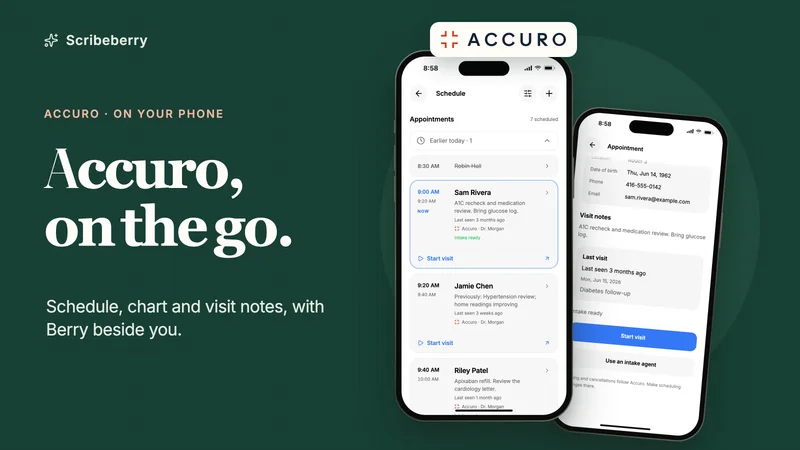
Accuro on your phone: Berry, the agentic AI scribe assistant for Accuro EMR
Use Accuro from your phone with Scribeberry: appointments with visit previews, chart records, dated lab answers, referrals and AI notes, in 11 device demos.
-
Product
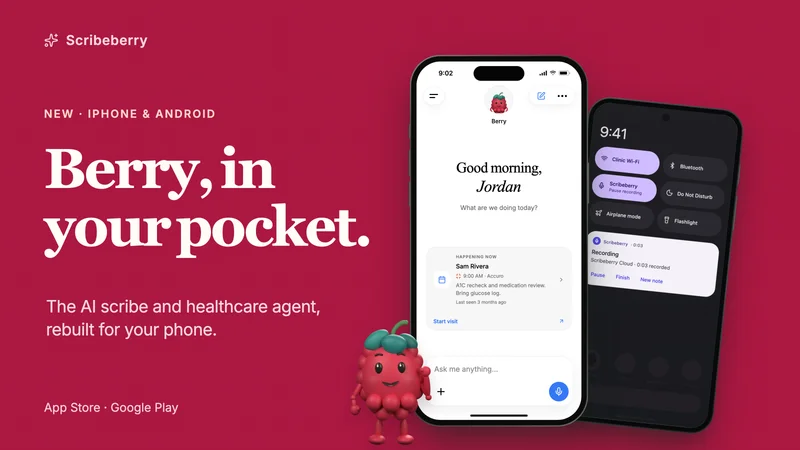
The new Scribeberry app: an AI scribe and healthcare agent for iPhone and Android
Use Scribeberry alongside your existing EMR, with Accuro appointments and charts for connected clinics. Ask Berry to prepare visits, fill forms and draft referrals.
-
Workflows
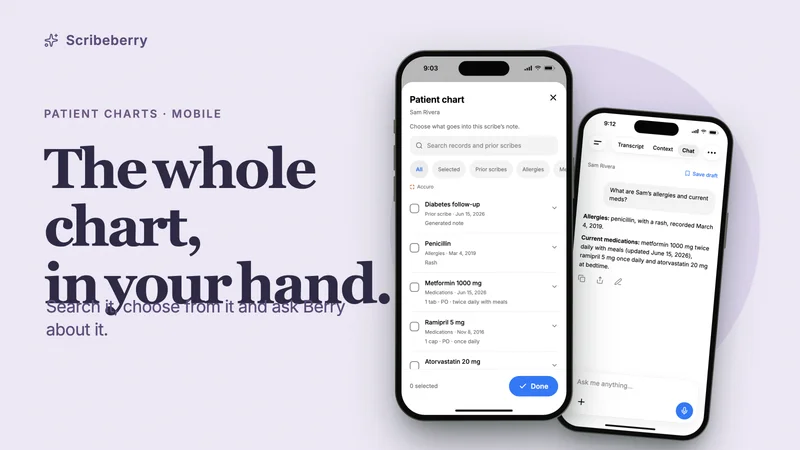
Patient charts on your phone: search, review and ask Berry about the whole chart
Review a patient’s chart on iPhone or Android: search records, preview documents, choose what goes into the note and ask Berry questions with dated answers.