


Patient charts on your phone: search, review and ask Berry about the whole chart


In this article 9 sections
Quick answer
In Scribeberry’s mobile app, a scribe linked to a patient has a Patient chart: allergies, medications, diagnoses, history, labs, encounter notes, documents and prior scribes, newest first. You can search it, preview records and choose what goes into the note, or ask Berry. Berry answers from that patient’s chart with dates and keeps the scribe to that patient.
Chart review on a phone used to mean squinting at a desktop EMR through a browser, or not doing it at all until you were back at a workstation.
The new Scribeberry app makes the chart part of the visit itself. Open a patient’s scribe and the Patient chart is one tap away. Search it, read it, choose what goes into the note, or just ask Berry.
Here’s how it works, in 10 short videos. They’re recreated app demonstrations with fictional patients and condensed timing.
Open the patient chart from the scribe
In a scribe linked to a patient, the Context tab has a Patient chart card. It opens the chart with everything newest first: prior scribes, then allergies, medications, diagnoses, history, labs, encounter notes and documents.
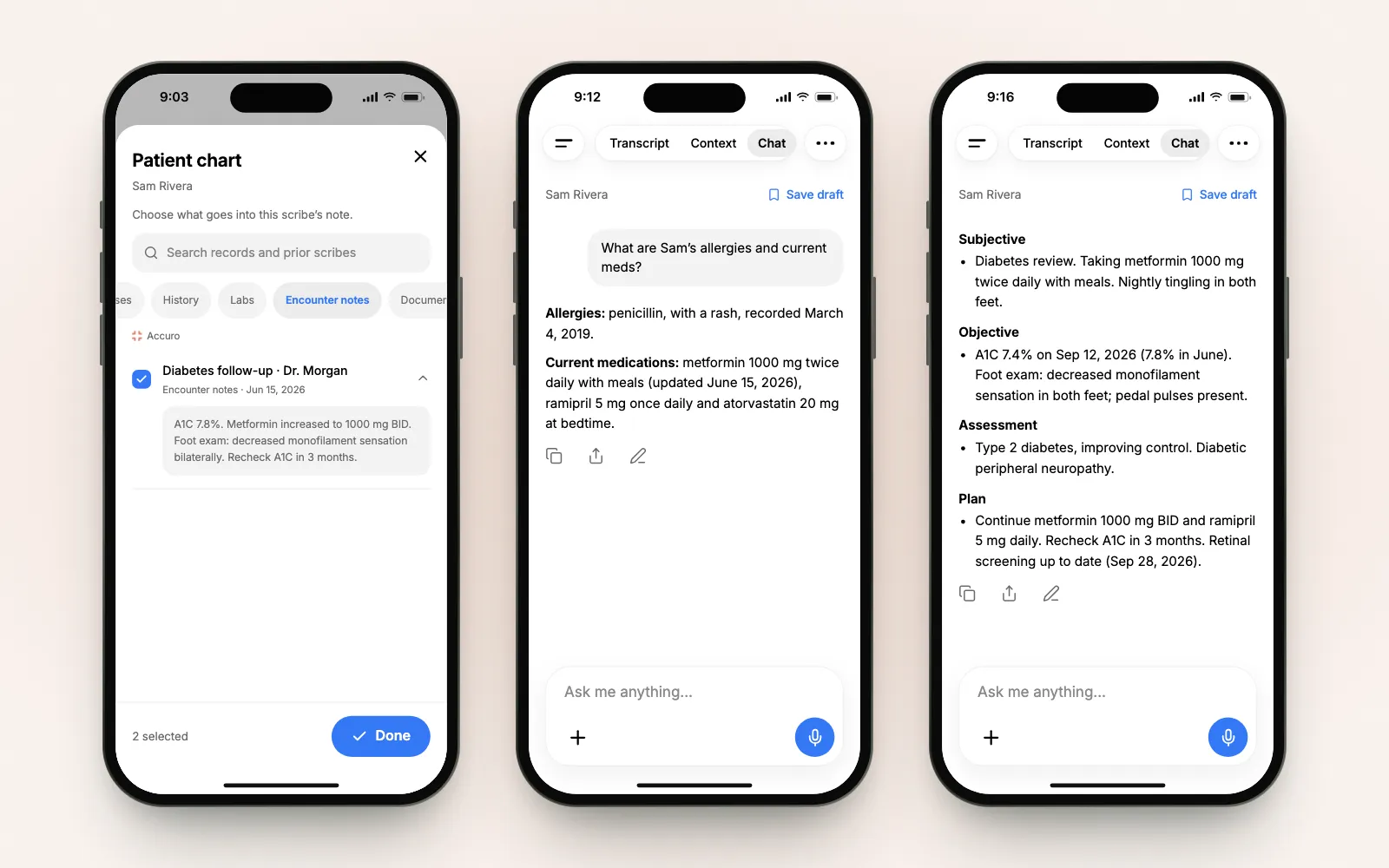
Search across records and prior scribes, preview any record with its chevron, and open documents to read their text. Here, a search for metformin finds the medication record, and the ophthalmology letter opens from Documents.
With Accuro connected, the chart loads from Accuro and says so at the top of the list. For patients without an EMR link, it shows the saved chart and prior scribes.
Choose what goes into the note
Tick the records that belong in today’s note. The selection decides what goes in, and the card in Context shows the count: 2 selected · Manage context.
Then generate as usual. The note is written from the transcript, your own context and the records you selected, and nothing else from the chart.
Ask the chart, get dated answers
Sometimes you don’t need to pick records at all. You need one fact, and you need to know how recent it is.
In a patient’s scribe, Berry answers from that patient’s whole chart: connected EMR records, the records selected for the scribe, saved chart facts and prior scribes. Each answer carries the dates of what it used.
Ask for a summary, and Berry lists each source separately with its own date, rather than blending them into one paragraph.
A missing item in an answer only means Berry didn’t find it in the records it could read. It isn’t proof that something is absent from the patient’s history.
One scribe, one patient
A scribe linked to a patient stays with that patient. Ask about someone else from Sam’s scribe, and Berry declines and suggests a new chat. Nothing is looked up.
That boundary matters on a phone you carry between rooms. The chart you’re reading is always the chart for the visit you’re in.
Outside letters and PDFs
Not everything arrives through the EMR. Tap + in the composer, choose Files or Photos, and attach the consult letter or the photographed report. Then ask about it.
Files added with Add files in the Context tab become part of the scribe’s context for the note.
Prepared before the visit
Pre-charting gives each visit a head start: a draft scribe with a short chart brief built from the imported records.
For the full flow, from choosing the day to creating the drafts, see your clinic schedule on your phone.
Forms from the chart, too
The same chart access fills paperwork. Berry fills the CRA Disability Tax Credit certificate from the visit and the chart, lists the sources it reviewed and leaves undocumented answers blank for you to complete.
The chart informs; you decide
Berry reads faster than anyone can scroll, but the clinical judgment is yours. Check the dates, open the source when an answer matters, and read the note before it leaves your hands.
Canadian customer patient data is stored and processed in Canada, with end-to-end encryption. See our security page for more.
If your clinic uses Accuro, the Accuro walkthrough shows the chart alongside the schedule. For the rest of the app, start with the new Scribeberry app.
Frequently asked questions
What’s in the patient chart in the Scribeberry app?
For a scribe linked to a patient, the Patient chart lists allergies, medications, diagnoses, history, labs, encounter notes, documents and prior scribes, each newest first. With Accuro connected, it loads from the Accuro chart; otherwise it shows the saved chart and prior scribes.
Does choosing chart records change the note?
Yes. The records you select in Patient chart go into that scribe’s note, along with the transcript and any context you add. Records you don’t select stay out of it.
How does Berry answer questions about a patient’s chart?
In a scribe linked to a patient, Berry reads that patient’s chart, including connected EMR records, selected records, saved chart facts and prior scribes, and answers with the dates of the records it used. Check the chart before acting on an answer.
Can Berry look up another patient from a patient’s scribe?
No. A scribe linked to a patient stays with that patient. Berry declines lookups for anyone else there and suggests starting a new chat.
Can I add outside documents?
Yes. Attach a PDF or photo in the scribe’s chat to ask Berry about it, or add it with Add files in the Context tab as context for the note.
Sources

More on topic
-
Workflows
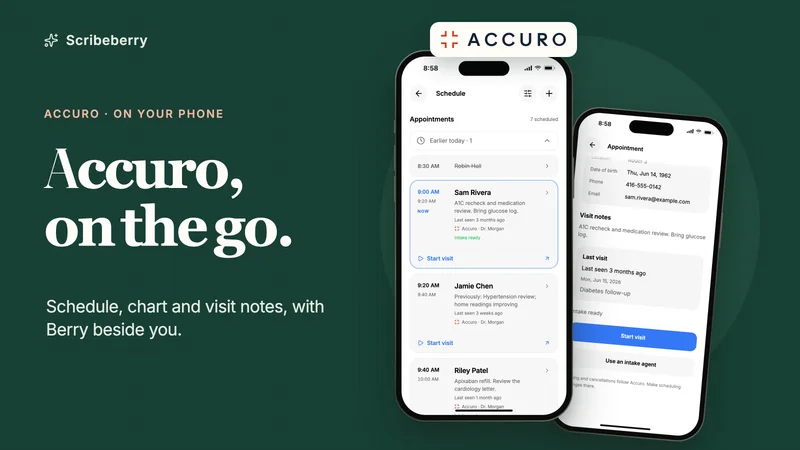
Accuro on your phone: Berry, the agentic AI scribe assistant for Accuro EMR
Use Accuro from your phone with Scribeberry: appointments with visit previews, chart records, dated lab answers, referrals and AI notes, in 11 device demos.
-
Product
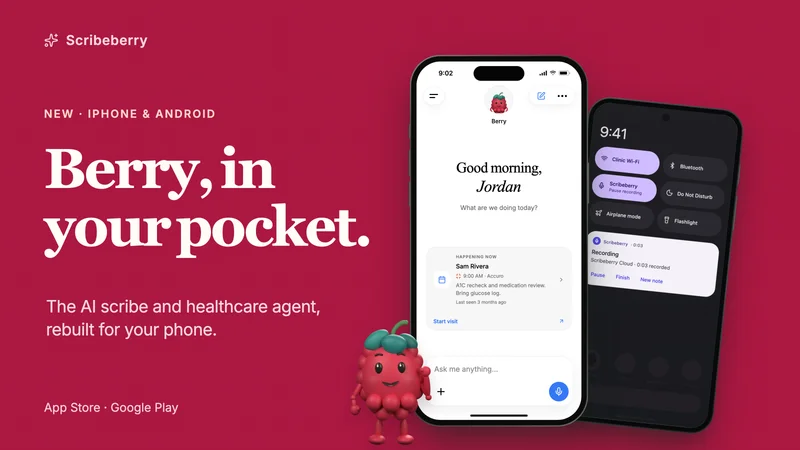
The new Scribeberry app: an AI scribe and healthcare agent for iPhone and Android
Use Scribeberry alongside your existing EMR, with Accuro appointments and charts for connected clinics. Ask Berry to prepare visits, fill forms and draft referrals.
-
Workflows
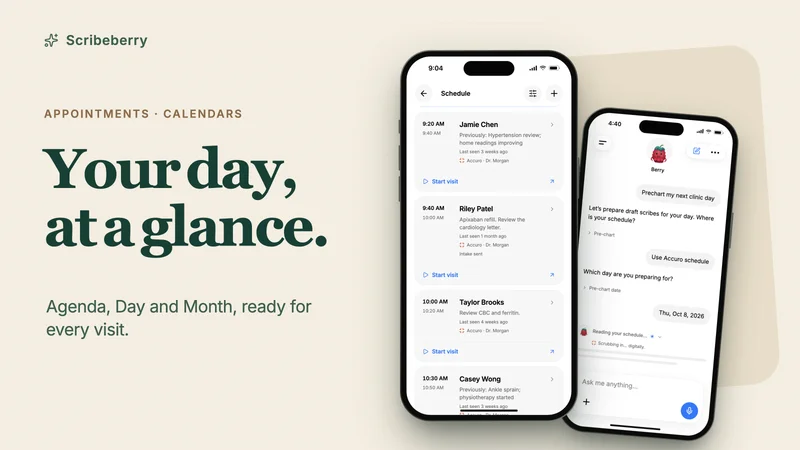
Your clinic schedule on your phone: appointments, calendars and pre-charting with Berry
See today’s patients, add appointments, connect calendars, import a day sheet and pre-chart any clinic day from your phone with Scribeberry and Berry. 10 demos.