


Berry for Accuro: from appointments to the chart


In this article 8 sections
Quick answer
Scribeberry connects to Accuro for AI scribing and chart-linked workflows. Berry, its healthcare agent, can read appointments, prepare draft visits with chart context, retrieve lab results and help send notes back to Accuro. The mobile Schedule brings those appointments into Agenda, Day and Month views.
Before the first patient arrives, there are already a few things you want to know. Who’s coming in? Which results came back? What changed at the last visit?
An AI scribe helps with the note. A connection to the chart makes it useful before and after that note, too.
That’s where Berry for Accuro fits. Scribeberry brings the appointment and patient context into the visit. Berry helps you work with it: ask about tomorrow’s schedule, prepare the visits, look up a lab result and get the finished note ready to send back.
Here’s a clinic day through those workflows, with extra attention to the new mobile calendar. These are recreated app demonstrations with fictional patients and condensed timing. The calendar video includes the newly implemented mobile Schedule views.
Your Accuro calendar, on your phone
The mobile Schedule gives you three ways to look at the day:
- Agenda: a readable list with the patient, appointment time, visit type and source. Open the appointment for details or use Start visit.
- Day: a time-based view for seeing where visits sit alongside one another.
- Month: the wider picture, with appointment indicators and a date you can select.
When several calendars are connected, tap Accuro to focus on that schedule. In this example, Sam’s diabetes review is at 9:00. Opening it brings the time, visit type and provider together, with a route into the visit.
Accuro remains the source for its appointment times and cancellations. If a patient calls to move their appointment, make that change in Accuro. The appointment details in Scribeberry make that distinction explicit.
Or just ask Berry what’s coming up
Sometimes you want the calendar. Sometimes you have one quick question.
“What’s my morning like tomorrow?”
Berry reads the connected Accuro schedule and puts the appointments in the conversation. The date and time of day sit above the list, so you can see exactly which part of the schedule it returned.
You can ask for a particular date or a part of the day rather than rebuilding a search from scratch. That is especially handy between rooms, when you want to check the next stretch of clinic without leaving the conversation.
Prepare tomorrow’s visits on iPad
The schedule is also a starting point for pre-charting.
“Prechart tomorrow morning with summaries, no intakes.”
Berry brings back the date, the number of visits and the chart information to include. Your integration preferences determine which kinds of records are pulled. Review the selection, then create the draft scribes.
On the web, those prepared visits appear together in a pre-chart folder. Each has its own patient context, ready to open when the visit begins.
The useful result is a better starting point: the correct patient and the available prior information in the place you will document the encounter. A pre-chart draft contains preparation, not findings from a consultation that has not happened yet.
Narrow the list, then read the chart brief
You don’t have to prepare every appointment Berry found.
In this phone example, the clinician asks for tomorrow’s visits, then says:
“Only the first appointment.”
Berry updates the review to one visit. After the draft is created, Chart summary expands a brief of Sam’s imported information. Open draft takes you to the prepared visit.
The brief is deliberately tied to the records returned for that patient. Diagnoses, medication entries, allergies and dated sources help orient you; the underlying draft is where you go for the full context. If an item was not imported, its absence from the brief does not establish a negative clinical finding.
Check a lab result without losing the visit
“Show Sam’s lab results.”
With the visit linked to the Accuro patient, Berry can retrieve the lab information and let you choose the test you want. Here, the clinician selects Hemoglobin A1C and sees dated observations with their units, reference range and reported flag.
A result is more useful with its date attached. You can distinguish the latest observation from an earlier one, then bring that information into your assessment. Berry retrieves the chart information; you interpret it in the clinical context.
Review the note’s destination before sending it back
Once the encounter is documented, you can ask:
“Send this note to Accuro.”
The workflow brings together the patient, the letter type and an appointment link when applicable. The letter types come from the connected Accuro setup, so your clinic’s choices may differ from the example.
Read the note preview and check the patient details, then choose Send note to EMR when you are ready.
That keeps the handoff close to the work. You finish the note in Scribeberry and review where it belongs before sending it to the chart.
Connect Accuro, then start with one workflow
If your clinic is getting set up, begin with the Accuro integration tutorial. You can also select Scribeberry on Accuro’s Marketplace add-ons enquiry form, or contact our team for help with your clinic’s connection and access.
Once connected, check the integration preferences for the chart information you want brought into new visits. Then try one ordinary request: tomorrow’s schedule, the first patient’s chart brief or a result you were about to look up manually.
For the wider picture, see how doctors use Berry across a clinic day, including forms, referrals and follow-ups. If you already use Accuro, open Scribeberry and start with the appointment in front of you.
Frequently asked questions
Does Scribeberry work with Accuro EMR?
Yes. Scribeberry has an Accuro integration for appointments, patient chart context and sending notes back to the chart. Berry uses that connection for workflows such as schedule questions, pre-charting and lab retrieval. Your clinic’s Accuro connection must be enabled in Scribeberry.
Can I see my Accuro appointments on my phone?
Yes. The mobile Schedule has Agenda, Day and Month views and a calendar-source filter. Select Accuro to focus on its appointments, then open a visit’s details. You can also ask Berry about a date or part of the day and receive an appointment list in the conversation.
Can I reschedule an Accuro appointment in Scribeberry?
Accuro remains the source for its appointment times and cancellations. Use Scribeberry to view those appointments and open the corresponding visit; make scheduling changes in Accuro. Scribeberry-created appointments have their own editing controls.
What does Berry’s Accuro pre-chart summary contain?
The chart brief summarizes the information returned for that patient using your selected integration data preferences. It can include diagnoses, medications, allergies, history and references to imported records. Open the draft for the underlying context; a missing item in a brief is not proof that it is absent from the chart.
Can Berry send a completed note to Accuro?
Yes. Berry can prepare the note-send workflow, including the Accuro patient, letter type and appointment link when applicable. Review the patient and note preview before choosing Send note to EMR.
Is Berry the same as Accuro AI Scribe, powered by Heidi?
No. Accuro AI Scribe, powered by Heidi, is a separate product offered by Accuro. Berry is Scribeberry’s healthcare agent, used inside Scribeberry with its Accuro connection. Scribeberry is listed among Accuro’s Marketplace vendors.
Sources

More on topic
-
Workflows
How doctors use Berry, Scribeberry’s healthcare agent
See how doctors put Berry to work: pre-charting, forms, referral faxes, patient follow-ups and Enterprise calendar tools, with iPhone and iPad demos.
-
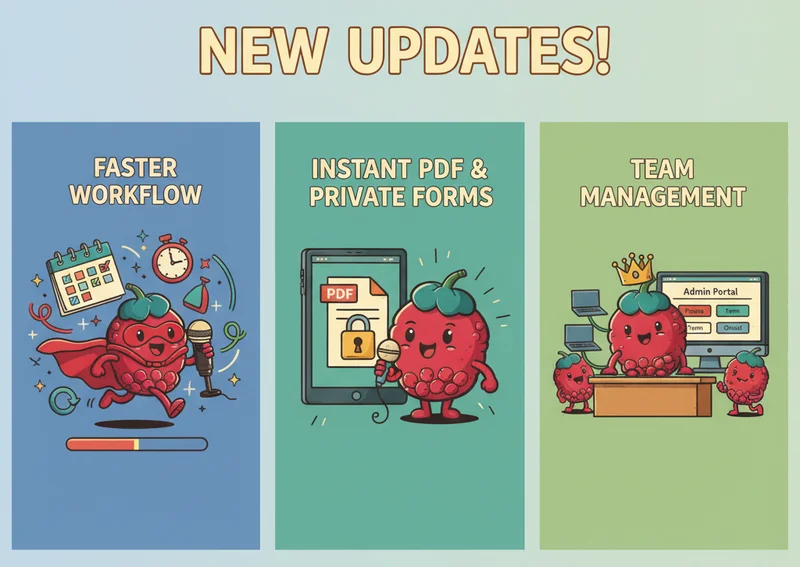
Guides
Deeper QHR Accuro Integration, PDF Form Improvements, Admin Portal
We’re rolling out a set of updates designed to improve your experience. The TLDR below summarizes a few new changes to save you some reading time.
-
Product
Meet Berry: Scribeberry’s Agent
Meet Berry, Scribeberry’s AI agent for clinical work. Pre-chart your day, prepare forms, send referrals and intakes, and manage follow-up tasks.