


Billing workspace: OHIP billing codes drafted into a day sheet


In this article 11 sections
Quick answer
A billing day sheet lists each visit with its fee code, diagnosis code, and amount so it can be checked before claims are entered in your billing system. Scribeberry's billing workspace (beta) generates a draft day sheet from your scribes for a date range, suggests fee and diagnosis codes from your province's schedule, flags visits that need a look, and exports CSV, PDF, or Markdown. It does not submit claims.
The notes are done. The billing is not. Somewhere between the last patient and dinner there is a list to reconstruct: who was seen, for what, and which fee code honestly describes it. It is the least clinical part of the day, and the easiest to get wrong from memory at 7 p.m.
Scribeberry’s billing workspace, now in beta, starts where the work already happened: your notes. Pick a date range and it drafts the day sheet for you. One row per visit, with a suggested fee code, diagnosis code, and amount, ready to review and hand to your biller. This post explains what a day sheet is, how the three step workflow runs, which provinces are covered, and where the workspace stops, because it does stop, well short of submitting anything.

What a billing day sheet is, and why it matters
A day sheet is the working list of one day’s billable visits. Each row pairs the encounter with the codes that describe it:
| Column | What it records | Where it comes from |
|---|---|---|
| Encounter | The visit, in plain words | Your note’s title or a short description you add |
| Fee code | The service being claimed | Your province’s fee schedule (the Schedule of Benefits in Ontario) |
| Diagnosis code | The reason attached to the claim | Your province’s diagnosis list, a separate catalogue from fee codes |
| Amount | The listed fee for that code | The current schedule, to be verified before submitting |
| Service date | The day the care happened | The scribe’s date, editable per line |
Billers have kept this list on paper, in spreadsheets, and inside EMR reports for decades. The failure mode is always the same: the list is built after the fact, from memory and appointment slots, and the note that would settle every question sits in another system. Building the day sheet from the notes themselves removes the reconstruction step. The evidence and the claim start on the same row.
Step 1: Generate from scribes
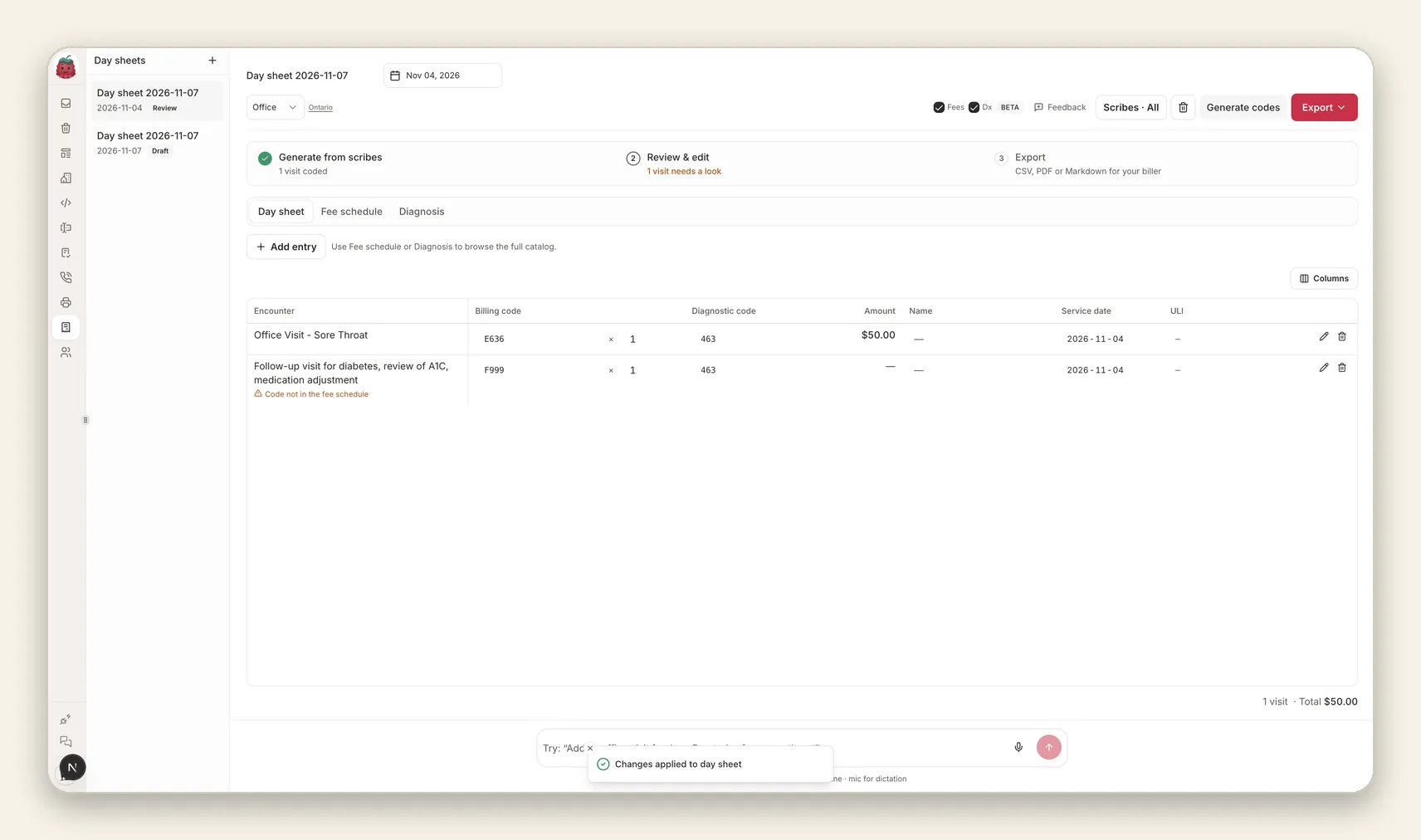
Open Billing, pick the day or date range, confirm the province and service setting, and choose Generate codes. Berry reads each finished scribe in that range and proposes the fee and diagnosis codes that match the documented service, with the listed fee beside them. You can include every scribe in the range or narrow the set first.
Three boundaries are worth stating plainly:
- Only visits with notes are coded. A visit with no finished note produces no row and no guess.
- Nothing is submitted. Generation fills a draft table inside Scribeberry. No claim leaves the building.
- A suggestion is not a payable claim. The amount shown is the listed fee from the provincial schedule. Whether the service meets the payment rules for that date, that setting, and your payment model is still a human decision, made by you or your biller.
Step 2: Review and edit
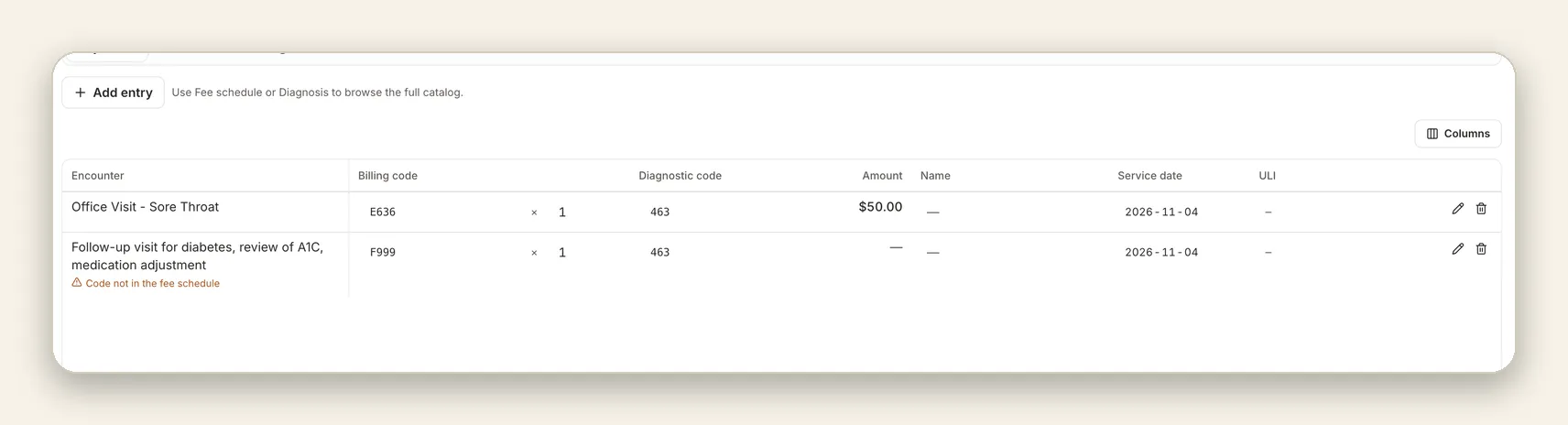
Generated rows land in an editable table. Change a code in place by searching code or description, adjust the quantity, date, or diagnosis, open the source scribe to check what the note actually says, or remove the line entirely. A per line editor covers the fuller field set, and the Columns picker trims the sheet to whatever your biller actually wants to receive.
Start with the flags
Anything Berry could not match confidently is gathered under “visits need a look” at the top of the sheet: a code that is not in the fee schedule, an ambiguous service, a row that needs a human decision. Work that list first and the rest of the sheet is the routine part.
Or just tell Berry
The composer bar at the bottom of the workspace takes instructions in plain language, typed or dictated: “Add an office visit for Jane Doe today for a sore throat,” or “Change the diabetes follow-up to Q040.” Berry shows you the change it is about to make and waits for your confirmation. Nothing is applied silently, which matters in a document that turns into money.

Step 3: Export for your biller
When the sheet checks out, Export produces a clean file your existing process can accept, or sends the sheet on directly:
| Format | Good for |
|---|---|
| CSV download or copy | Importing into billing software or a spreadsheet |
| PDF download | A readable record for the chart or the biller’s inbox |
| Markdown download or copy | Pasting into notes, email, or team tools |
| Email or fax | Sending the day sheet straight to your biller from the workspace |
The claim itself is still entered in your usual billing system, under your usual controls. Your biller receives a reviewed document instead of a reconstruction, and the audit trail from note to code stays one click deep.
Fee codes and diagnosis codes, without leaving the sheet
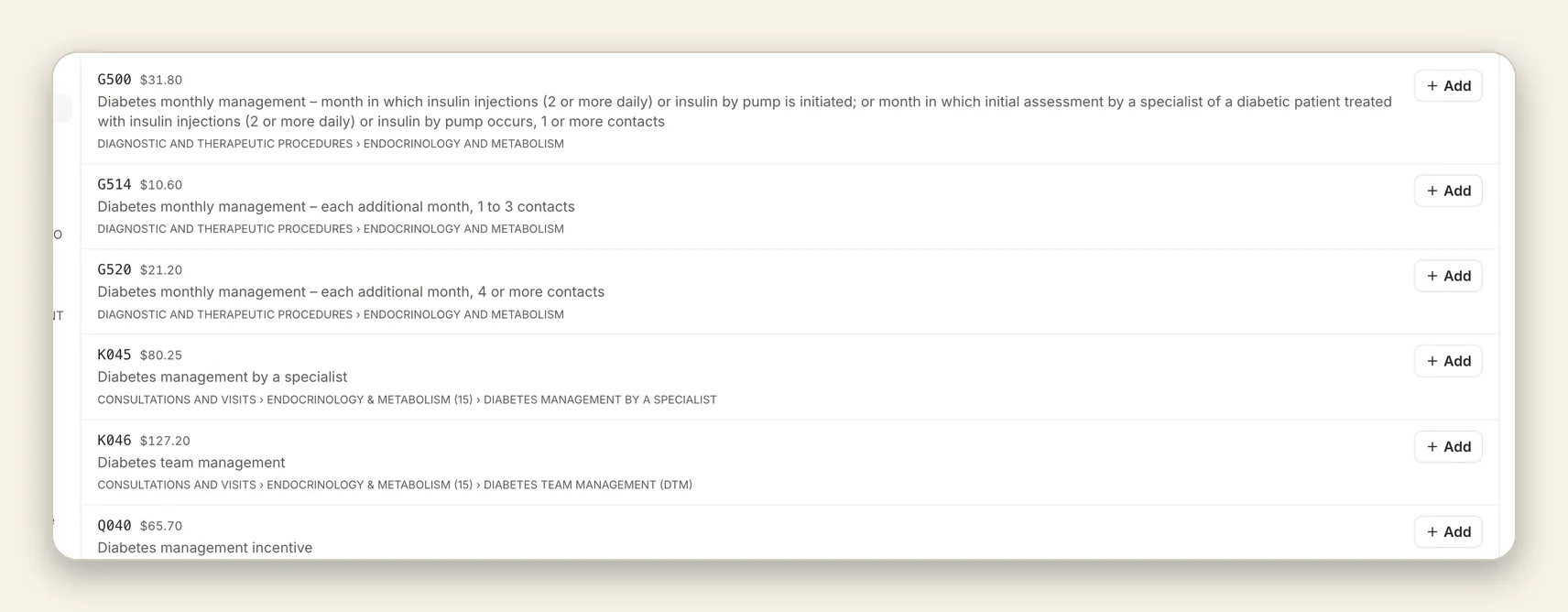
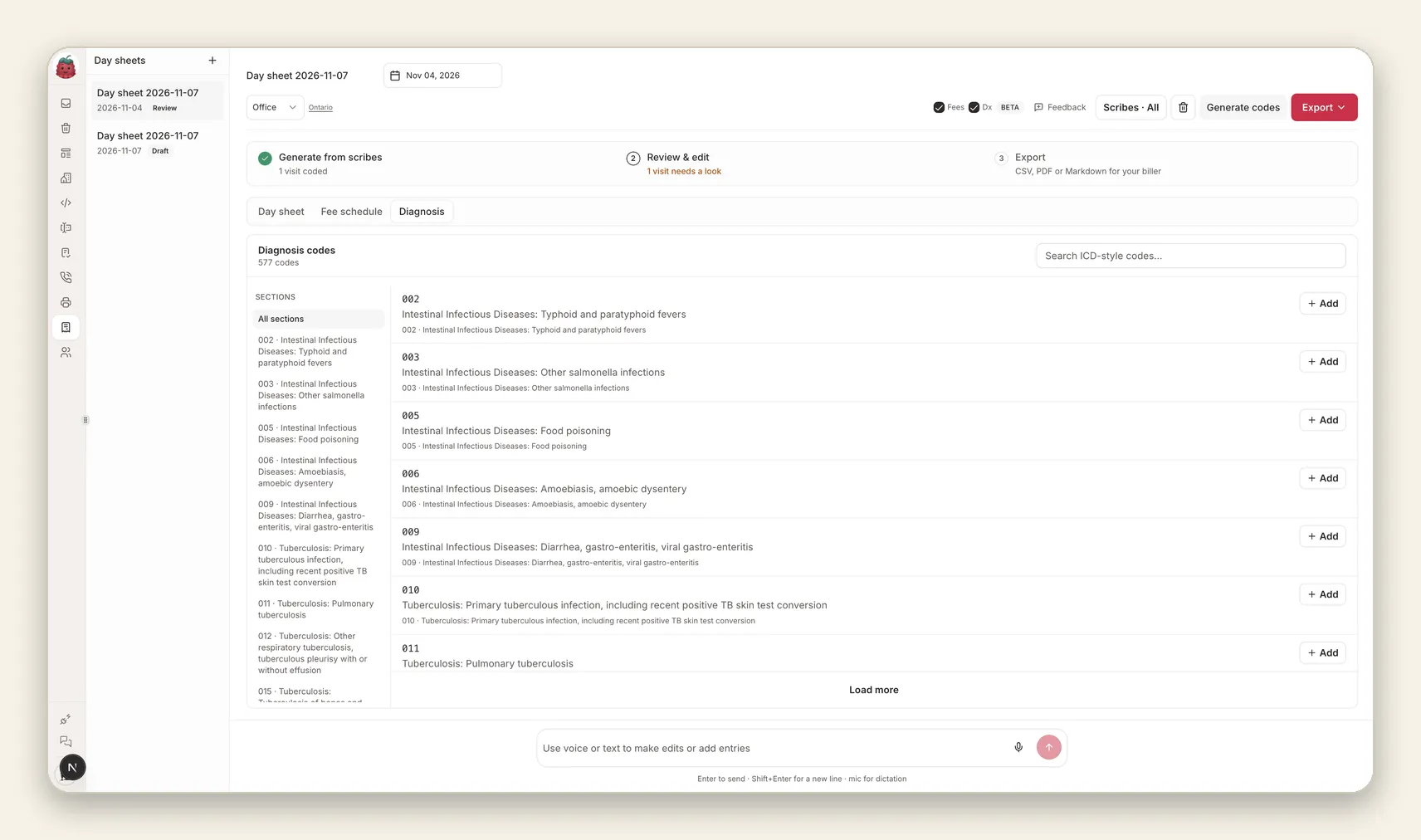
The Fee schedule and Diagnosis tabs put your province’s full catalogue inside the workspace. Search “diabetes” in Ontario and the management codes arrive together, with sections and listed fees in context:
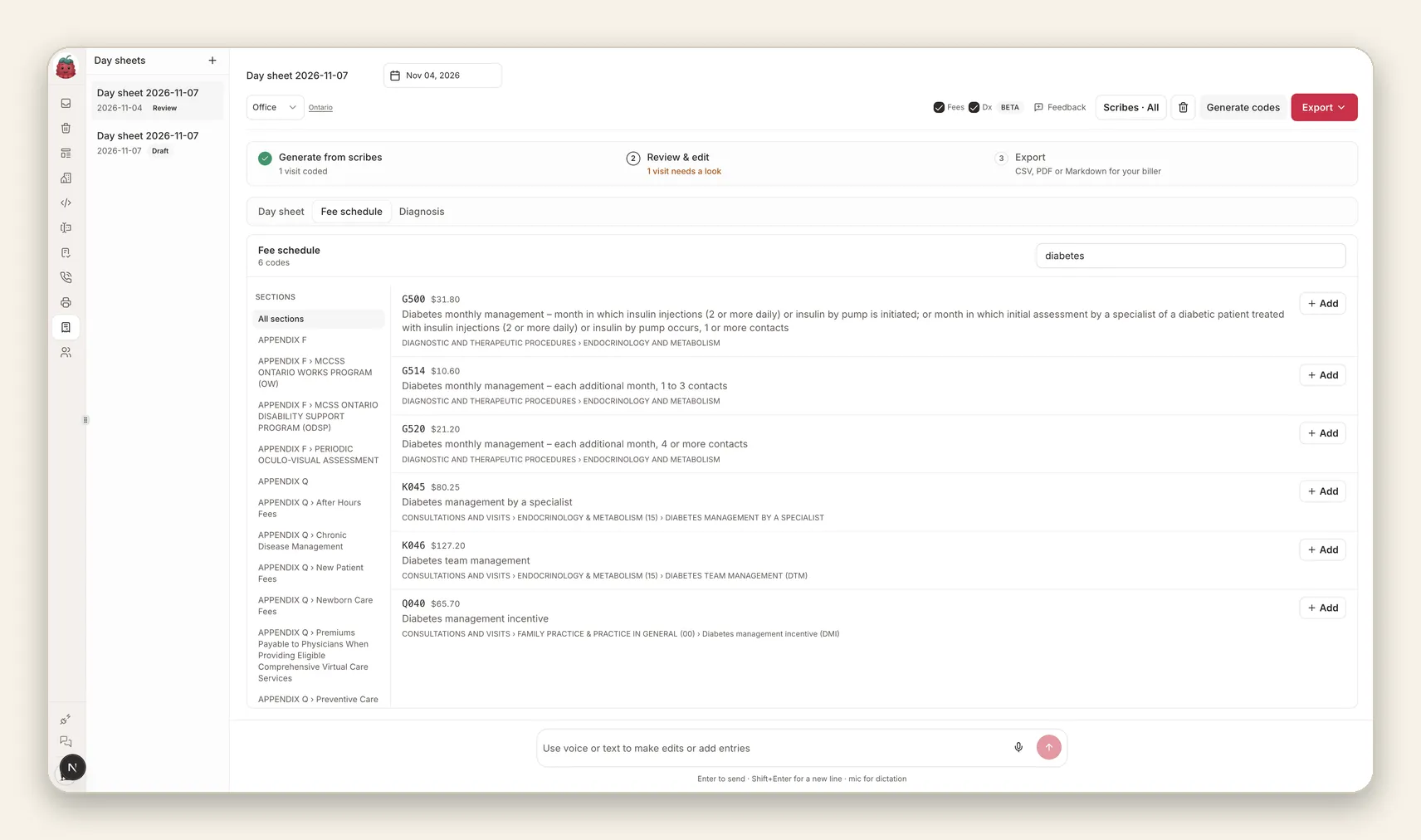
Worth pausing on, because these rows teach the difference between nearby codes:
- G500 ($31.80) is monthly diabetes management for the month insulin is started or intensified, with its own contact requirements.
- K045 ($80.25) is diabetes management by a specialist, a different service by a different provider type.
- Q040 ($65.70) is the diabetes management incentive, with criteria of its own, including at least three K030 services in the preceding 12 months and a limit of once per patient per 12 months.
Picking between them is a reading task: what was done, by whom, and what does the Schedule require for payment. That is exactly the reading the workspace puts in front of you, instead of a bare code in a spreadsheet cell. Any row can be added to the day sheet with one click, and our earlier guide walks through looking up OHIP billing codes with Berry if you want the code by code detail.
Diagnosis codes get the same treatment. They live in their own catalogue because they are a different list from fee codes, with different rules. In Ontario that is the province’s diagnostic code list; the workspace keeps it sectioned and searchable beside the fee schedule.
Which provinces are covered
| Province | Schedule in the workspace | Notes |
|---|---|---|
| Ontario | OHIP Schedule of Benefits for Physician Services | Fee codes and the Ontario diagnosis list |
| British Columbia | MSP payment schedule | Includes longitudinal family practice (LFP) codes |
| Alberta | Schedule of Medical Benefits (SOMB) | Includes Alberta modifiers |
| Saskatchewan | Saskatchewan fee schedule | Fee and diagnosis catalogues included |
| Manitoba | Manitoba fee schedule | Fee and diagnosis catalogues included |
| Quebec | Not available yet | The workspace will say so rather than guess |
Whichever province you bill in, treat workspace amounts as listed fees to verify. Schedules are amended, bulletins land mid year (Ontario publishes these as INFOBulletins), and payment model rules sit on top of the fee. The official provincial source is always the final word, and the sources below link to it.
A fictional Ontario day, checked properly
Two visits, invented for this post. An office visit for a sore throat, and a diabetes follow-up with an A1C review and a medication change.
Generation proposes a visit code for the sore throat and, for the diabetes follow-up, the candidates the note can support. If the note documents the required elements of a diabetic management assessment, K030 is the candidate to consider. Two rules from the Schedule then shape the row:
- K030 is not eligible for payment with other consultations and visits rendered by the same physician to the same patient on the same day, so it is not stacked on top of a separate visit code for that encounter.
- Q040, the diabetes management incentive, asks for more than a third visit on a calendar. It carries its own requirements, including the three K030 services in the preceding 12 months noted above.
The workspace puts the candidates and amounts in front of you in seconds. Applying those rules to the claim remains your call, exactly as it is today. That division of labour is deliberate, and it is the honest one: Berry is fast at reading notes and schedules, and payment eligibility is a judgement with a physician’s name on it.
How this differs from medical billing software
Billing software such as the OHIP and MSP submission tools many clinics already use does a different job: it transmits claims, receives remittances, and manages rejections. The billing workspace does none of that, on purpose. It sits one step earlier, turning finished notes into a reviewed day sheet that your existing billing software, service, or biller can take as input. If your claims pipeline works, this does not replace it. It feeds it better raw material, and it gives solo and small practices a review step they often skip when the day runs long.
Four day sheet mistakes this workflow is built to catch
- The code that is not in the schedule. A typo or a retired code sails through a spreadsheet. Here it is flagged on the row, in orange, before export.
- The visit reconstructed from memory. Rows come from notes, not from the appointment book, so what was documented is what gets coded.
- The near miss code. G500, K045, and Q040 all involve diabetes and all pay differently. Reading the full description at the moment of choosing is the fix.
- The unreviewed export. Flags must be cleared by a person, and Berry’s own edits wait for confirmation. The sheet that reaches your biller has been looked at.
Beta, and labelled like it
The billing workspace carries a beta label and an up front disclaimer because billing is unforgiving of quiet mistakes. The design follows from that: drafts instead of submissions, flags instead of silent guesses, the source note one click from every row, and export formats your current process already accepts.
Open Billing in Scribeberry, generate today’s sheet, and see how much of the 7 p.m. reconstruction it removes. Then tell us what your biller thinks. Beta feedback shapes what gets built next.
Frequently asked questions
What is a billing day sheet?
A day sheet is the working list of a day's billable visits: one row per encounter with the fee code, diagnosis code, service date, and amount. Clinicians and billers review it, correct it, and then enter or import the claims into their usual billing system. It is the checkpoint between the clinical note and the submitted claim.
Does Scribeberry submit OHIP or MSP claims?
No. The billing workspace drafts and organizes the day sheet and exports it as CSV, PDF, or Markdown, or sends it by email or fax. Claims are still submitted through your usual billing system, after you have reviewed every line against the current provincial schedule and the rules for the service date.
Which provinces does the billing workspace support?
The workspace ships with fee schedules and diagnosis catalogues for Ontario (the OHIP Schedule of Benefits), British Columbia (MSP, including LFP), Alberta (the SOMB, including modifiers), Saskatchewan, and Manitoba. Quebec is not available yet. Always confirm codes against your province's current official schedule before submitting.
What is the difference between a fee code and a diagnosis code?
A fee code identifies the service being claimed, such as an intermediate assessment. A diagnosis code identifies the condition or reason attached to that claim. They come from different lists, and a general ICD lookup is not a substitute for your province's diagnosis list. The workspace suggests both, side by side, so each row can be checked as a pair.
How are the suggested codes chosen?
Berry reads the finished note for each scribe in the date range and suggests the fee code and diagnosis code that best match the documented service, with the listed amount. Suggestions are a starting point for review, not a determination that a claim is payable. Payment rules, required elements, and your payment model still govern.
Can I look up MSP billing codes in the workspace?
Yes. Set the workspace to British Columbia and the Fee schedule and Diagnosis tabs browse the MSP catalogue, including longitudinal family practice (LFP) codes, with listed fees beside each code. Any row can be added to the day sheet, and every amount should still be confirmed against the current MSP payment schedule before you submit.
Can I edit a day sheet before exporting it?
Yes, and you should. Every line is editable in the table or in a per line editor. You can add entries by hand, ask Berry in plain language or by voice, remove lines, and choose which columns appear. Visits Berry is unsure about are flagged as needing a look, so they get your attention first.
What happens to visits with no note?
Only scribes with notes in the selected date range are coded. If a visit has no note yet, finish the note first, then generate again, or ask Berry to add the entry manually with the details you provide.
Sources

More on topic
-
Workflows
How doctors use Berry, Scribeberry’s healthcare agent
See how doctors put Berry to work: pre-charting, forms, referral faxes, patient follow-ups and Enterprise calendar tools, with iPhone and iPad demos.
-
Workflows
Berry for Accuro: from appointments to the chart
See Scribeberry and Berry work with Accuro: mobile calendars, appointment questions, pre-chart briefs, lab results and note review, with six device demos.
-
Guides
OHIP billing codes: start with the visit, then check the rules
Look up OHIP billing codes with clinical context. See Ontario fee examples, fee versus diagnostic codes, and Berry’s iPhone and iPad lookup workflows.