


Structured templates: AI scribe templates that fill in your note


In this article 9 sections
Quick answer
A structured template describes your note as headings and fields instead of free text instructions. Fixed wording prints exactly as written, bracketed fields are filled from the visit, rules in parentheses guide how Berry writes, and sections can appear only when they are relevant. Scribeberry's structured templates (v2) keep your classic template untouched, so you can switch note styles without losing either version.
Every clinician has a layout they trust. The same headings in the same order. The same phrasing for a normal exam. The same way of writing a plan, numbered problem by problem. Written out honestly, most clinical notes are not free text at all. They are a form you have been filling in by hand for years.
Classic AI scribe templates describe that layout in prose: “Write a SOAP note with these sections, include the onset and severity, keep it concise.” That works, up to a point. Prose leaves room for interpretation, and interpretation is where variation creeps in. A heading gets reworded here. Two sections get merged there. The note is right, but it is not quite your note, so you spend a minute reformatting before you sign.
Structured templates take the other approach. The template is the layout itself: headings, fixed lines, and typed fields, written the way the finished note should look. Scribeberry’s new structured templates (v2) then fill that layout from the visit, line by line. This post walks through how they work, how to build one from a SOAP note template you already use, and how they compare with the classic templates you may already have. New to AI scribes entirely? Start with our 2026 guide to AI scribes for doctors, then come back for the template craft.
Why AI scribe templates work better as structure
Time motion research has repeatedly found that physicians spend roughly two hours on documentation and desk work for every hour of direct patient care. Sinsky and colleagues measured that ratio in ambulatory practice in 2016, and Tai-Seale and colleagues found a similar split in primary care office visits in 2017. Templates exist to claw some of that time back, but only when the output needs no reformatting.
A structured template removes three common sources of cleanup:
- Wording drift. Fixed text is reproduced exactly as you typed it, every time. Your normal exam sentence stays your normal exam sentence, word for word.
- Invented filler. A field the encounter says nothing about is left blank. The engine never writes “not mentioned” or “not documented,” and it never guesses a value to fill the space.
- Section sprawl. Sections with an “only if” condition appear only when the visit actually covered them. There are no empty headings left to delete.
There is a fourth, quieter benefit. When every note from a template has the same shape, reviewing gets faster. Your eye learns where the plan lives, where the follow-up interval sits, and what a missing piece looks like. Consistency is a safety feature, not just a style preference.
The four building blocks
Headings that behave like sections
Headings define the skeleton of the note: Subjective, Objective, Assessment and Plan, or whatever layout your specialty uses. A heading can also carry behaviour. Mark it “only if” and the whole section appears only when its condition came up in the visit. Mark a block to repeat and everything under it is written once per problem, once per medication, or once per item, however many the visit covered.
Fields that know their type
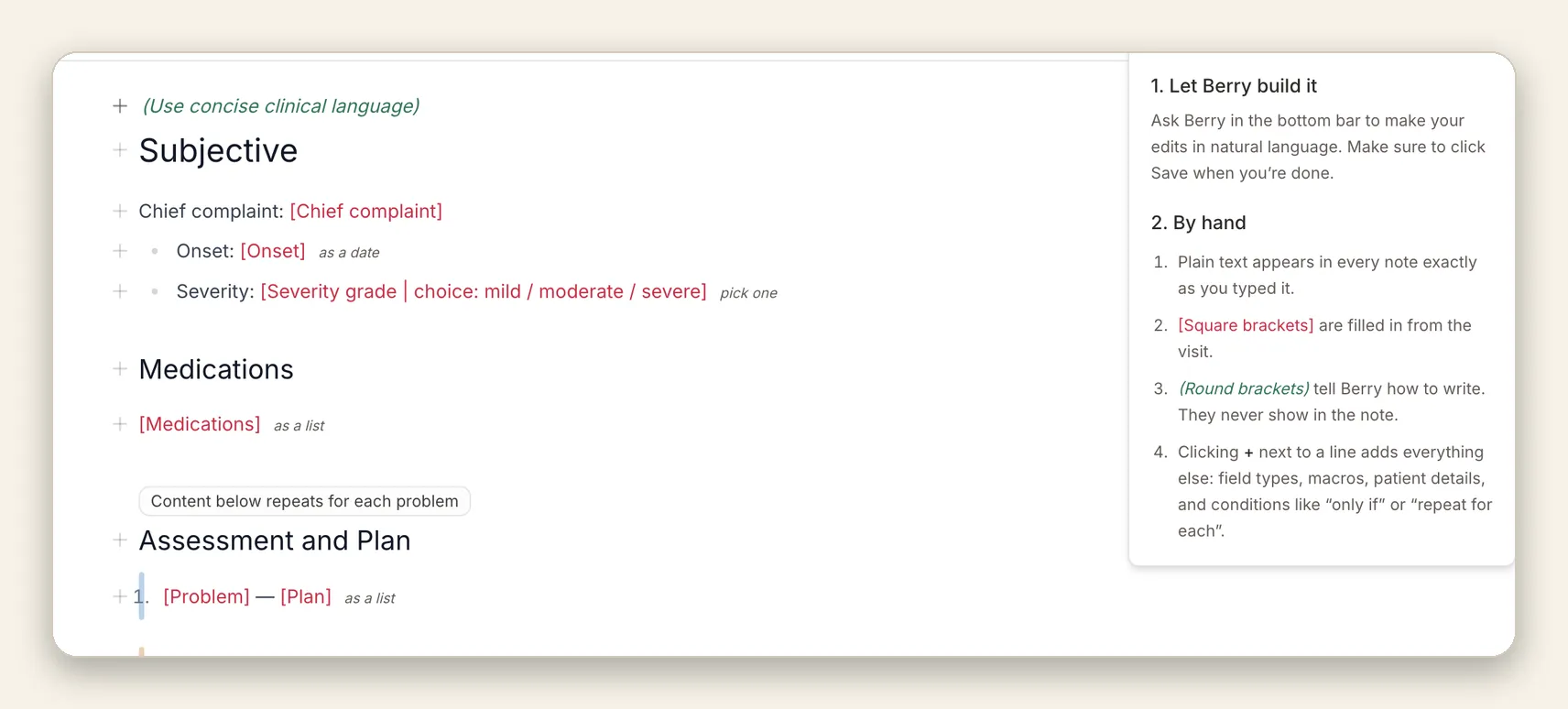
A field is written in square brackets, with an optional type after the pipe: [Onset | date], [Severity grade | choice: mild / moderate / severe], [Medications | as a list]. Clicking a field opens its settings, where you can change the type, edit the options, set a default, and decide what happens when the topic never came up.
| Field type | How it prints | Works well for |
|---|---|---|
| Text | A short phrase filled from the visit | Chief complaint, onset, laterality |
| Paragraph | Full sentences in your voice | History of presenting illness, counselling given |
| List | One item per line | Medications, allergies, plan items |
| Number | A value, with units if you specify them | Doses, vital signs, scores |
| Date | A formatted date | Onset dates, follow-up intervals, procedure dates |
| Choice | One selected option, or every option with the selected one marked | Severity grades, yes and no findings, exam normals |
| Checklist | Several options, printed selected only or in full | Review of systems, red flag screening |
Choice and checklist fields deserve a second look, because they solve a real documentation habit. Many clinicians write negatives explicitly: “Denies fever, chills, night sweats.” A checklist field set to show all options prints that full line and marks what applies. Set to selected only, it prints just the positives. Same template, two charting styles.
Fields can also carry a default. The default prints only when the encounter says nothing about the field. Standard lines you would otherwise dictate all day, such as return precautions or a routine counselling sentence, belong here. If the visit covered the topic, the visit wins and the default stays out.
Rules that never print
Anything in parentheses is an instruction to Berry: (use concise clinical language), (only if a timeframe was stated), (record doses in mg). Rules shape tone, units, and level of detail. They are read on every generation and they never appear in the finished note, which keeps the template readable: what you see is the note, plus quiet guidance in green.
Macros and patient details
Reusable snippets and patient variables, such as name, age, or visit date, can be dropped in anywhere with the insert menu. The personal lines you include in every consult letter or procedure note are generated for you instead of retyped.
A SOAP note template, written as structure
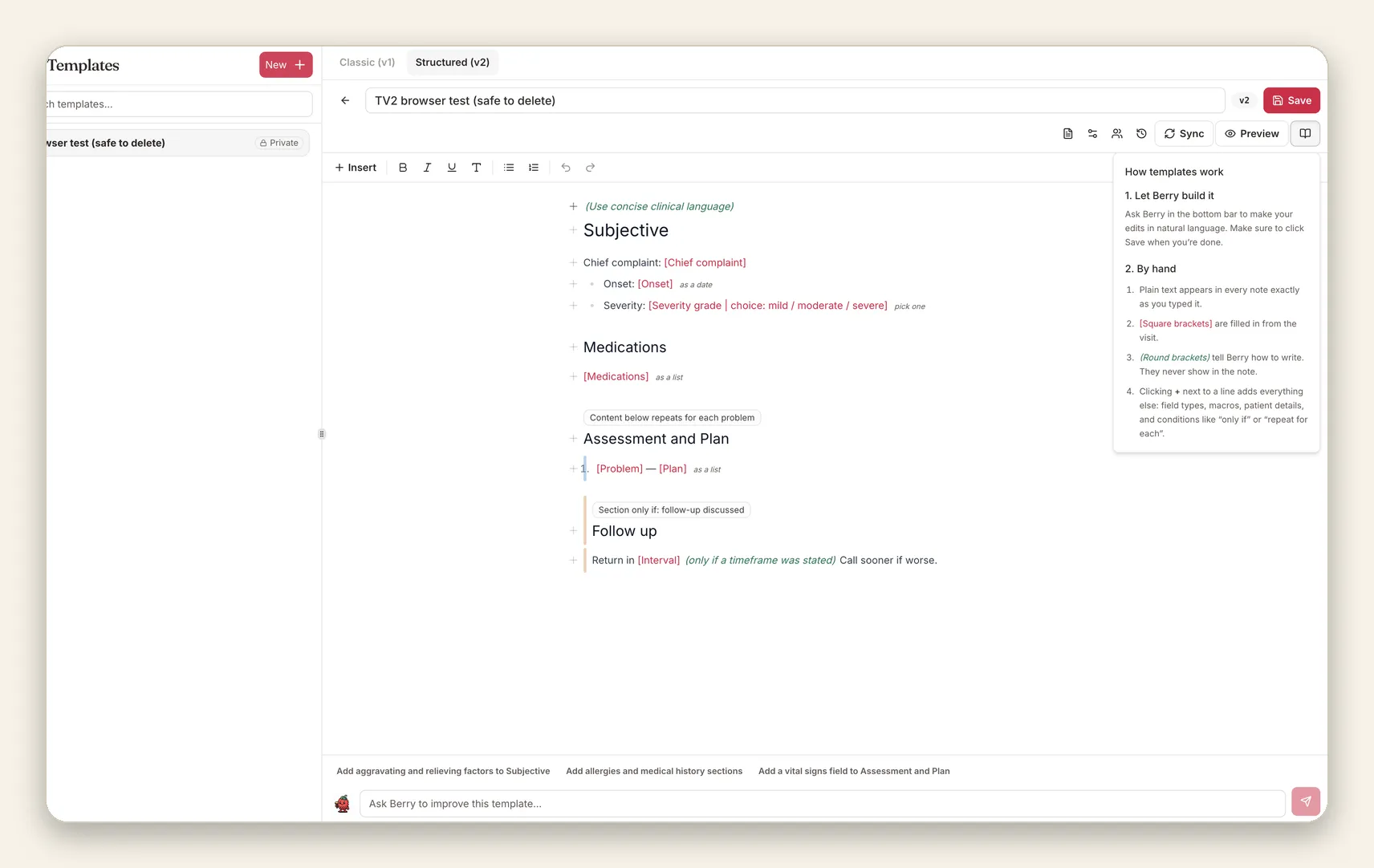
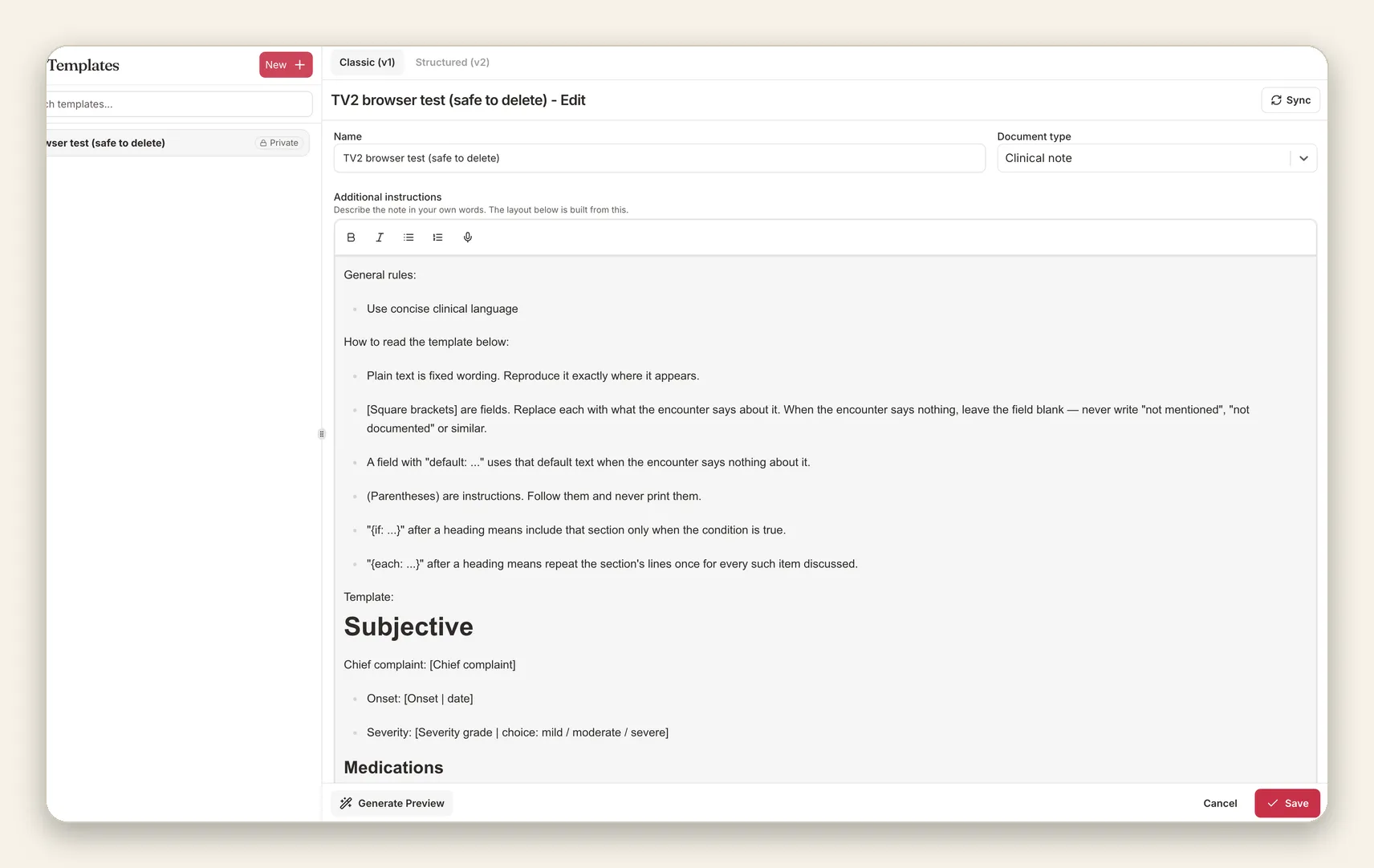
Here is the skeleton from the screenshots above, written out the way you would type it. It is a fictional example, shortened for the page:
(Use concise clinical language)

Subjective
Chief complaint: [Chief complaint]
- Onset: [Onset | as a date]
- Severity: [Severity grade | choice: mild / moderate / severe]

Medications
[Medications | as a list]

Assessment and Plan
(each problem discussed)
1. [Problem] - [Plan | as a list]

Follow up
(only if follow-up was discussed)
Return in [Interval | only if a timeframe was stated]. Call sooner if worse.
Read it top to bottom and you can predict the finished note almost exactly. That predictability is the point. A classic template asks the model to remember your layout. A structured template hands it the layout and asks it only to fill the gaps.
The same skeleton adapts well beyond family medicine. A psychiatry note keeps Subjective and Plan but swaps in mental status fields and a risk checklist. A physiotherapy progress note leans on number fields for range of motion and pain scores. A telemedicine note adds a field for the visit modality and consent wording as a default. You are not starting from a blank page each time; you are editing one skeleton until it sounds like you.
Three ways to build one
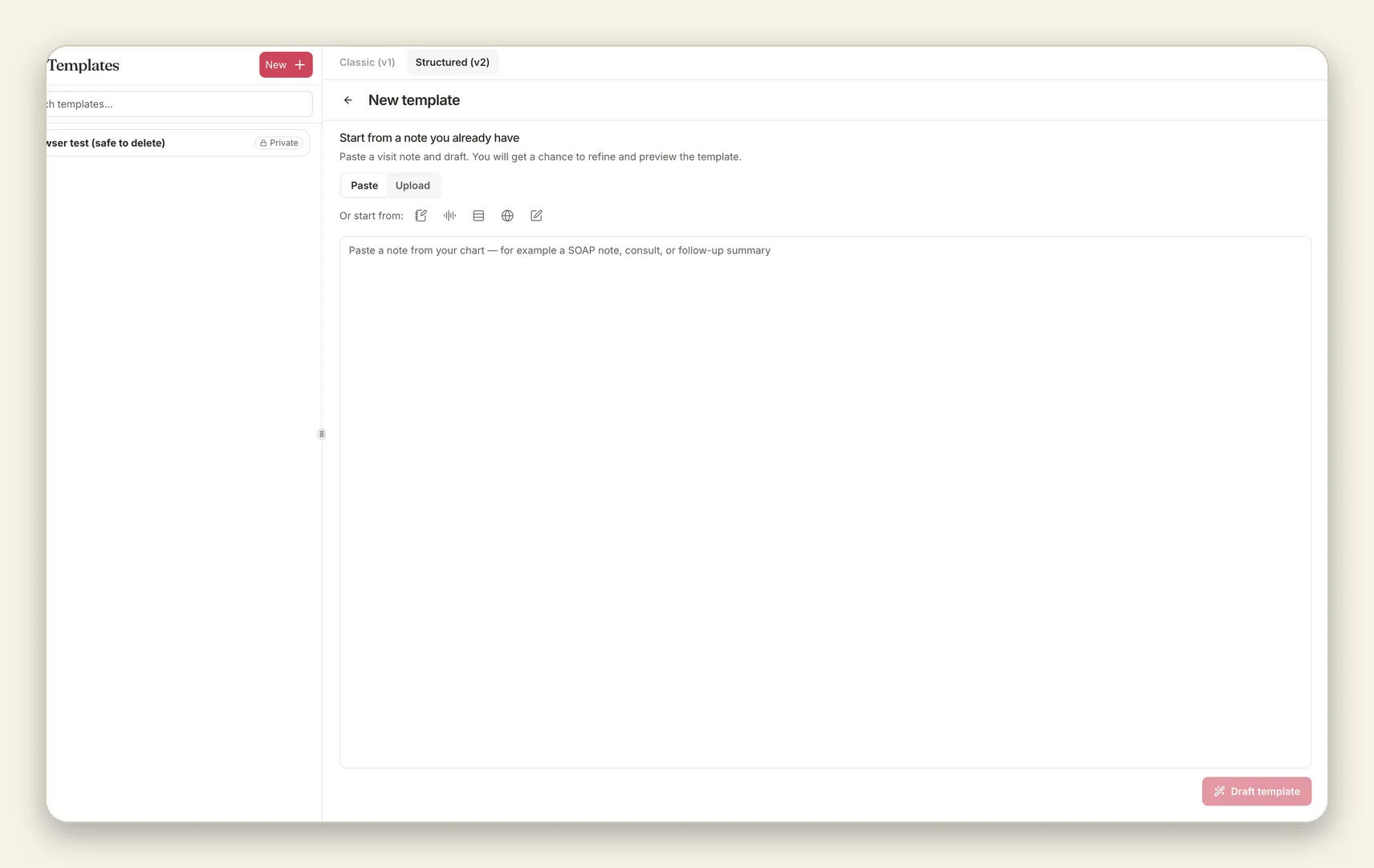
1. Start from a note you already have
This is the fastest route, and for most clinicians the best one. Choose New template, paste or upload a finished note (a SOAP note, a consult letter, a follow-up summary), and Berry drafts the structured version. Your headings are kept. The patient specific details become fields. Nothing is saved until you have reviewed the draft, renamed fields, and deleted anything that was specific to that one patient.
A good source note is a typical one, not your most complicated case of the year. Pick the visit you see ten times a week. The template will inherit that note’s habits, so give it habits you like.
2. Type it yourself
Open a blank structured template and type the layout directly. The editor colours fields, rules, and conditions as you go and flags mistakes in place. The + Insert menu, or pressing /, adds headings, fields, rules, conditions, repeat blocks, tables, and macros, so there is no syntax to memorise. Clicking the faint + beside any line opens the same menu for that spot.
3. Ask Berry to edit it
The bar at the bottom of the editor takes plain language instructions: “add aggravating and relieving factors to Subjective,” “make the plan repeat per problem,” “add a vital signs field.” Berry proposes the edit, you accept or adjust it, and suggested refinements appear above the bar based on your current layout.

Preview with a fictional visit before you commit
Saving a template you have never seen filled in is a leap of faith. Preview removes it. Berry invents a short sample visit, fills your template with it, and shows the generated note beside the template, with the sample transcript one click away.
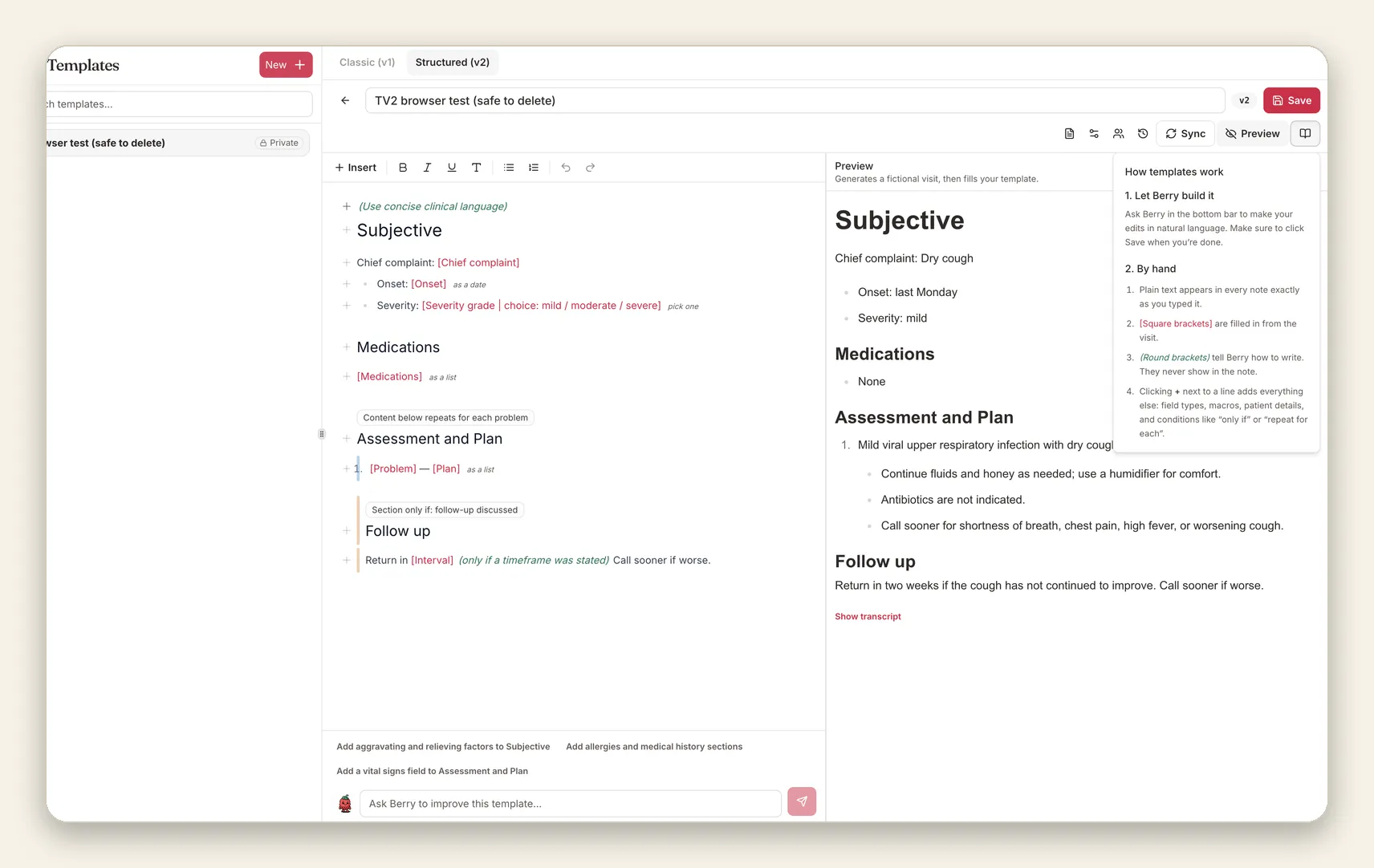
Three things are worth checking in every preview:
- Choice fields. Does “show all options” read the way you chart, or do you want selected only?
- Repeat blocks. Generate a visit with several problems and read the numbering. This is where awkward phrasing shows up.
- Conditions. If the sample visit never mentioned follow-up, the Follow up section should be absent, not empty.
Fix what you find, preview again, then save. Two minutes here is cheaper than editing every note for a month.
Classic templates and structured templates, side by side
If you already have classic templates you like, nothing about this launch asks you to give them up. Each template keeps both versions. Switching styles changes which one generates your notes, and the other version stays exactly as you left it.
| Classic template (v1) | Structured template (v2) | |
|---|---|---|
| Written as | A paragraph of instructions | The note layout itself: headings, fields, rules |
| Fixed wording | Approximated by the model | Reproduced exactly as typed |
| Unmentioned topics | Handled by instruction, varies | Left blank, or a default you set |
| Optional sections | Described in prose | “Only if” conditions on the heading |
| Repeated content | Numbered by the model | Repeat blocks per problem, medication, or item |
| Best for | Loose, narrative notes | Consistent layouts, house styles, forms |
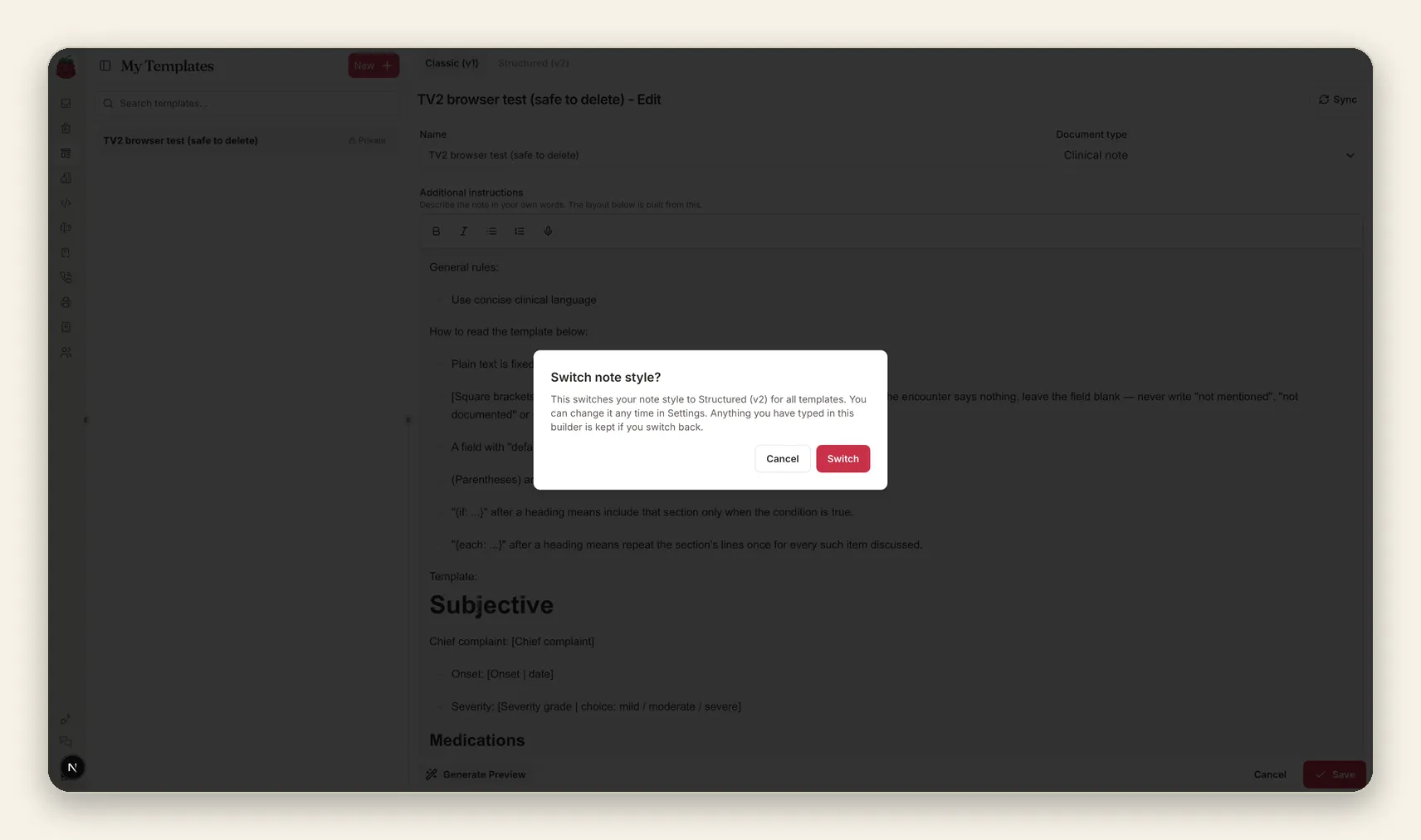
The switch itself is one confirmation. Open a template, choose the Structured (v2) tab, and confirm. Your classic text is untouched and waiting if you switch back.
Five habits that make structured templates work
- Write fixed text like you mean it. Anything outside brackets prints verbatim, including your punctuation. Draft those lines as finished prose, not instructions.
- Name fields after the answer, not the question.
[Onset]fills better than[When did it start?], and the finished note reads cleaner. - Default sparingly. A default is a claim about a visit that did not mention the topic. Keep defaults to true boilerplate: precautions, routine counselling, standard exam normals you personally verified are safe in your workflow.
- Put style in rules, not in prose. “Be concise” inside the layout would print. (be concise) in parentheses steers the writing and stays invisible.
- Preview with a messy visit. A tidy sample hides weak spots. Ask for a preview, then imagine three problems, two medication changes, and no follow-up booked. That is the note your template has to survive.
Getting started
- Open Templates and pick any template, or create a new one from a pasted note.
- Switch to the Structured (v2) tab and confirm the note style change. You can also set your preference under Settings, then Preferences, then Note style.
- Adjust fields, defaults, and conditions. Click any field to change its type or options.
- Run Preview and read the fictional note end to end.
- Save. New notes generated with that template now follow the structured layout.
If your clinic has a house style, a consult format everyone shares, a procedure note, a discharge layout, this is how you make every generated note match it, without giving up the classic templates you already rely on.
Frequently asked questions
What is a structured note template in an AI scribe?
It is a template written as headings and typed fields rather than a paragraph of instructions. Fixed text is reproduced exactly, bracketed fields such as [Onset | date] are filled from the encounter, and rules in parentheses tell the AI how to write without appearing in the note. Because the structure is explicit, the output follows the same layout on every visit.
How do I make a SOAP note template in Scribeberry?
Open Templates, create a new template, and either paste a finished SOAP note so Berry can draft the structure for you, or type the layout yourself: headings for Subjective, Objective, Assessment and Plan, bracketed fields for the details that change, and parenthetical rules for tone. Run Preview with a fictional visit, adjust anything that prints oddly, then save.
What is the difference between a classic and a structured AI scribe template?
A classic template is a paragraph of instructions the AI interprets each time, so wording can drift between notes. A structured template is the note layout itself: fixed lines print verbatim, typed fields control what goes where, and conditions decide which sections appear. Scribeberry keeps both versions on the same template and lets you switch between them.
Can I turn an existing note into an AI scribe template?
Yes. Choose New template and paste or upload a finished note, such as a SOAP note, consult, or follow-up summary. Berry drafts a structured template from it and turns the patient specific details into fields. You review, refine, and preview the draft before saving it.
What happens when a field was not mentioned in the visit?
By default the field is left blank. Berry never writes 'not mentioned' and never invents a value. You can also set a default for a field, such as a standard counselling line, which is used only when the encounter says nothing about that topic.
Can a section appear only when it is relevant?
Yes. Headings can carry an 'only if' condition, so a Follow up section appears only when follow-up was discussed, and a block can repeat once per problem, medication, or other item. Irrelevant sections are omitted instead of being padded with filler.
Do structured templates replace my classic templates?
No. Each template keeps both a classic and a structured version. Switching your note style in Settings, then Preferences, changes which version generates your notes. The other version is kept exactly as you left it, so you can switch back at any time.
Can I preview a template before using it on real visits?
Yes. Preview generates a fictional sample visit and fills your template with it, side by side with the sample transcript, so you can check headings, field behaviour, and conditions before the template ever touches a real note.
Sources

More on topic
-

Guides
AI Scribe for Doctors: The 2026 Guide to Automated Clinical Documentation
A 2026 guide to AI scribes for doctors: what the research shows, costs, Canadian privacy and consent, and why physicians choose Scribeberry.
-

Product
New Feature: Create Your Own Templates
Scribeberry now lets you craft medical templates to your exact needs across all specialties. Drag, drop, edit, the possibilities are endless. Plus, exclusive…
-
Product
Introducing Scribeberry's V2: Reduced Errors, Improved Detail, Template Sharing + More
Scribeberry version 2 is here with Advanced Mode, a Template Hub for sharing templates, and enhanced security with password logins. We’ve revamped the UI for a…